 Socnivo
Your society, in one app
This guide walks you through everything you can do in Socnivo as a resident - approving visitors, paying maintenance, booking amenities and more. Every screen below is a real screenshot from the app.
1 Getting started
What you need before you begin, and what the app is for.
Socnivo brings your whole housing society into one place - the gate, your maintenance bills, notices, complaints and community, all on your phone.
Before you start, make sure you have
- An Android phone or iPhone with the Socnivo app installed.
- The mobile number that your society committee has on record.
- Your society join code (a 6-character code your committee or manager shares), and your tower and flat number.
- A password. The first time you sign in you'll create one; after that you sign in with your mobile number and password.
2 Signing in
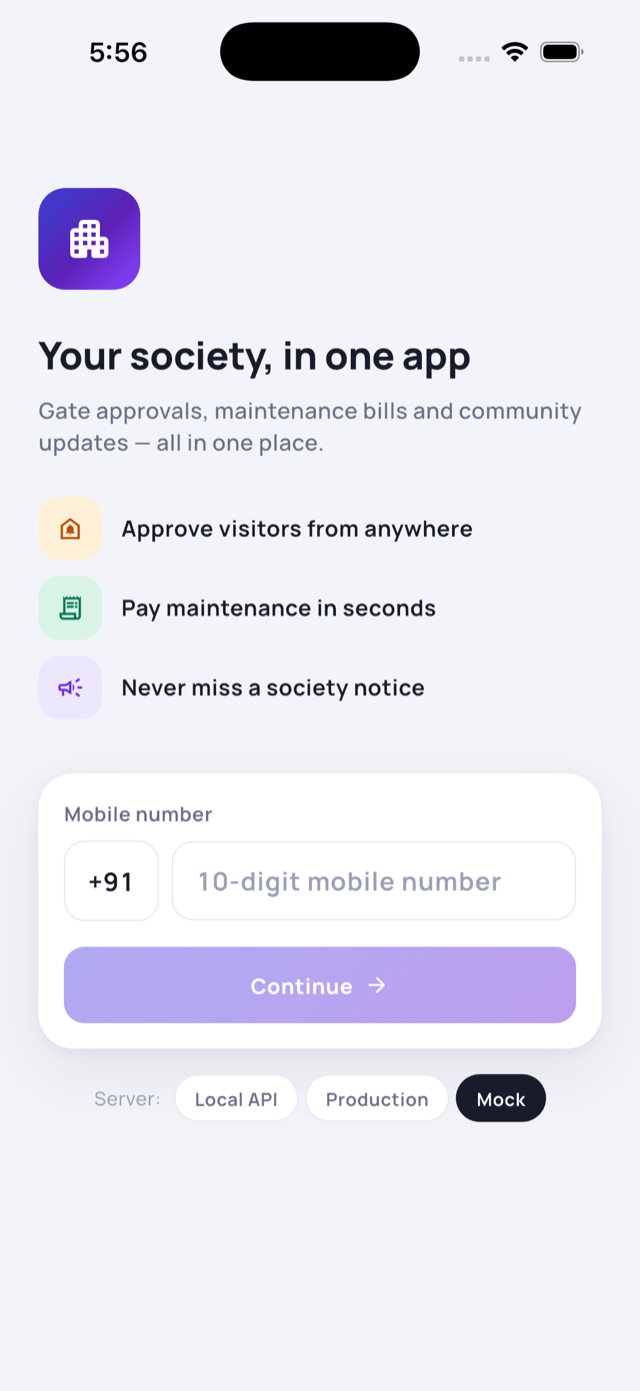
Sign in with your mobile number and your password. No code needed for everyday sign-in.
- Open the app. On the sign-in screen, type your 10-digit mobile number (the country code +91 is already filled in).
- Type your password.
- Tap Sign In — you're in.
First time, or forgot your password?
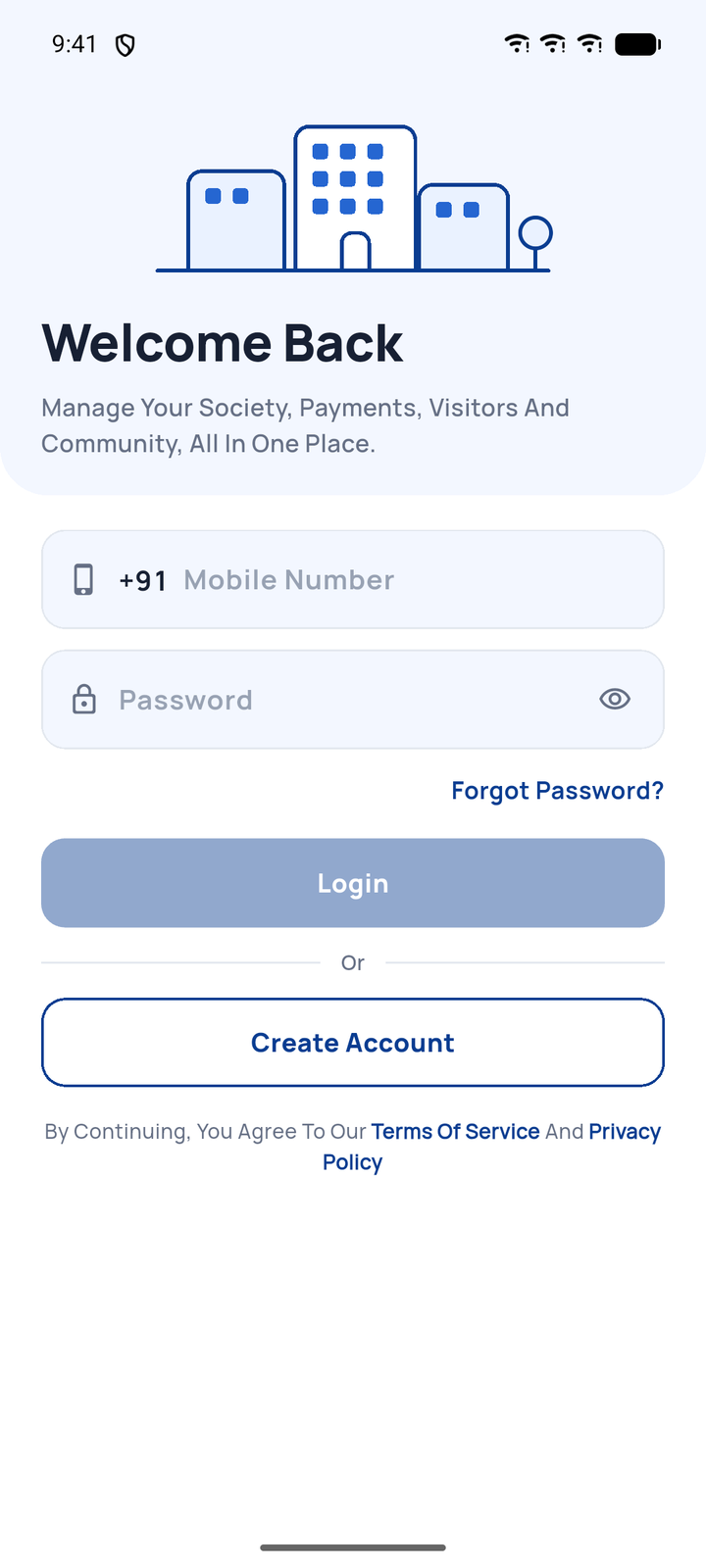
- On the sign-in screen, tap Set your password (first time) or Forgot password.
- Enter your mobile number — we send a 6-digit code to your phone. Enter it.
- Choose a password (at least 8 characters) and confirm it.
- Done — now sign in with your number and password.
3 Creating your account
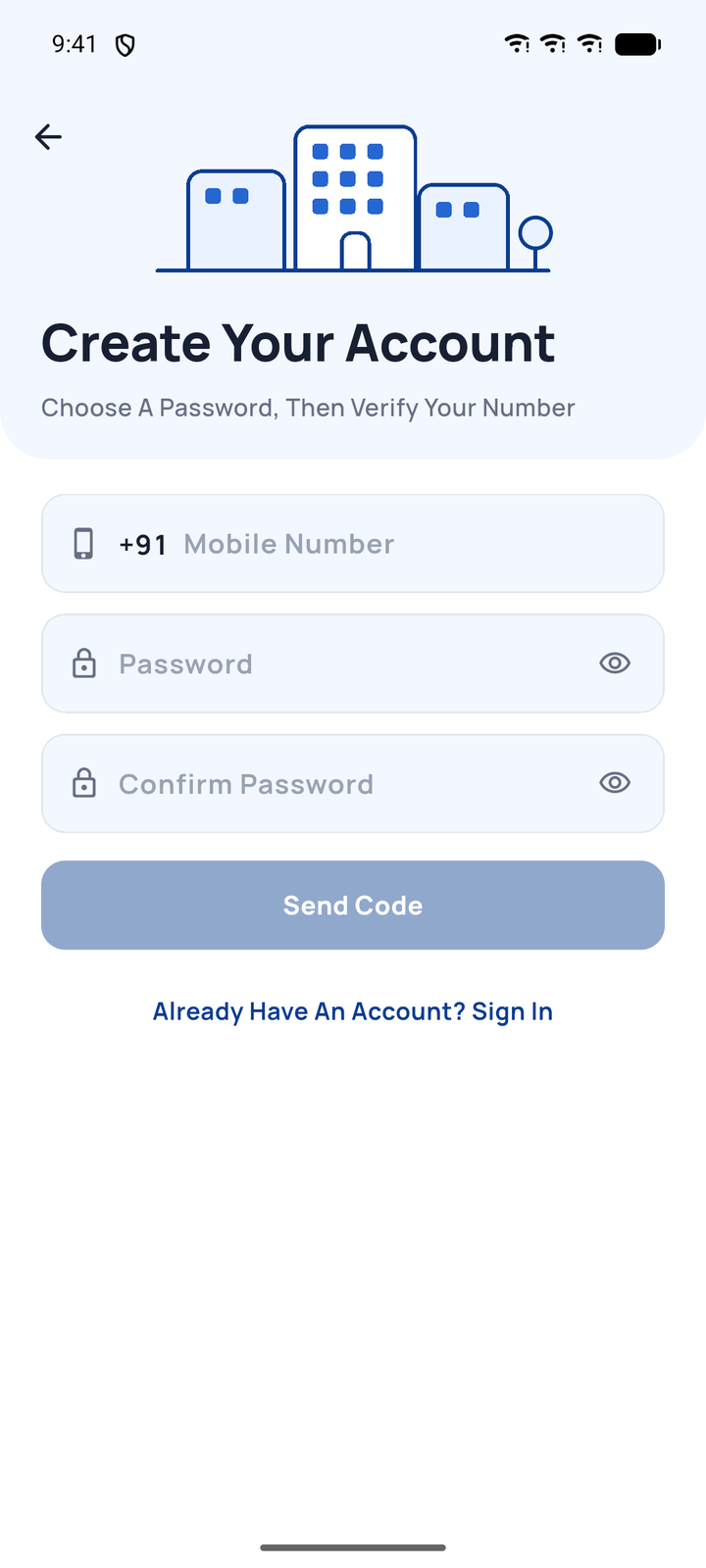
New to Socnivo? Create your account first, then join your society.
- On the sign-in screen, tap Create account.
- Enter your mobile number and choose a password (at least 8 characters).
- We send a 6-digit code to confirm your number — enter it.
- Your account is ready — next, join your society (below).
4 Joining your society
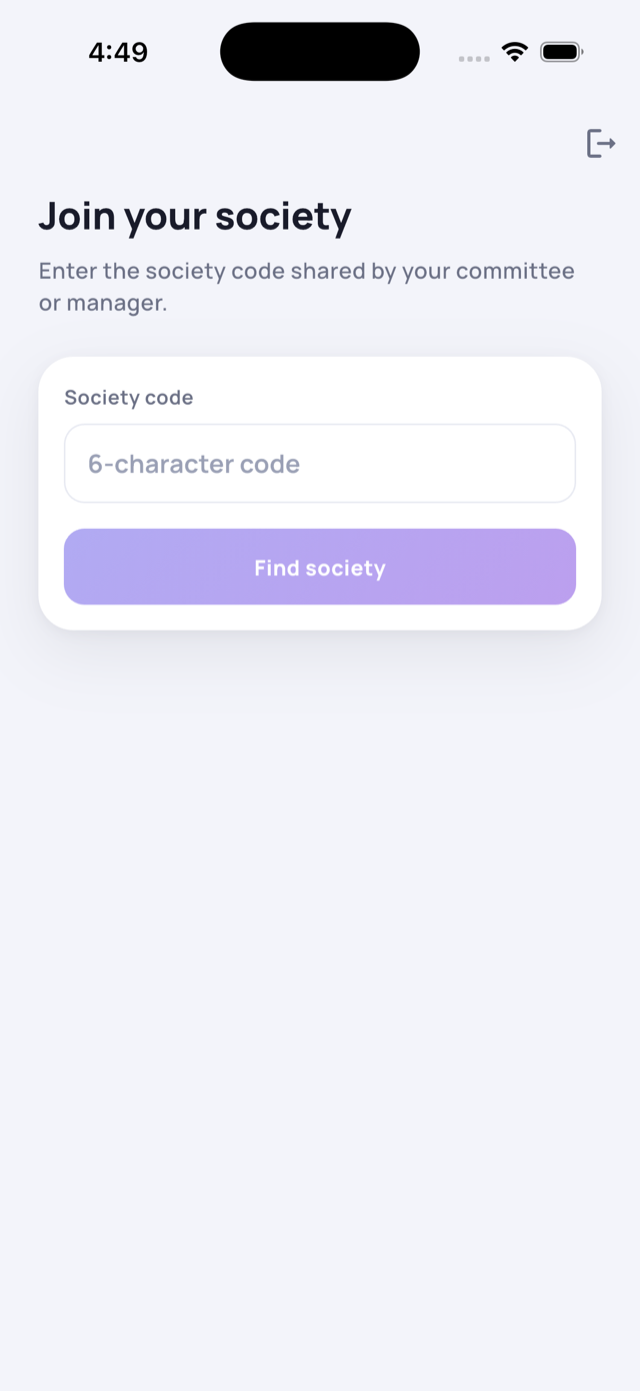
Link your account to your flat. Your admin approves the request, then your home screen fills with your society’s data.
Step by step
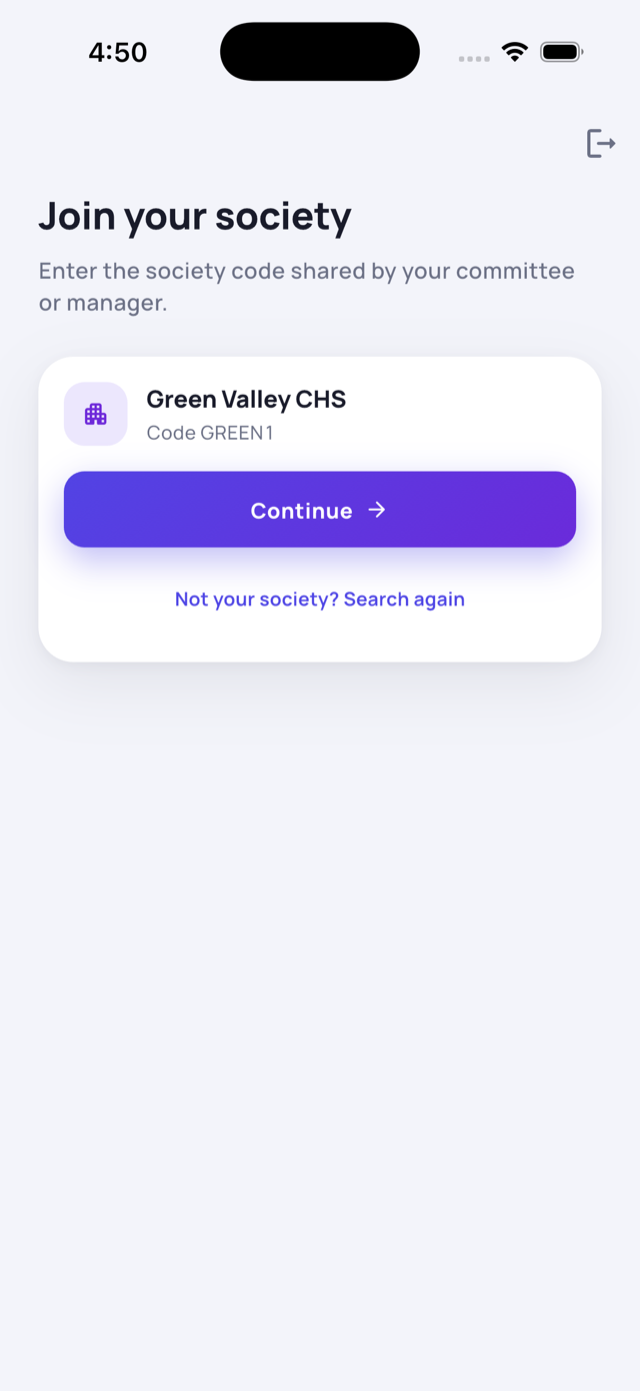
- On Join your society, enter the 6-character society code from your committee and tap Find society.
- Check the society name and code are right, then tap Continue. Tap “Not your society? Search again” if it’s wrong.
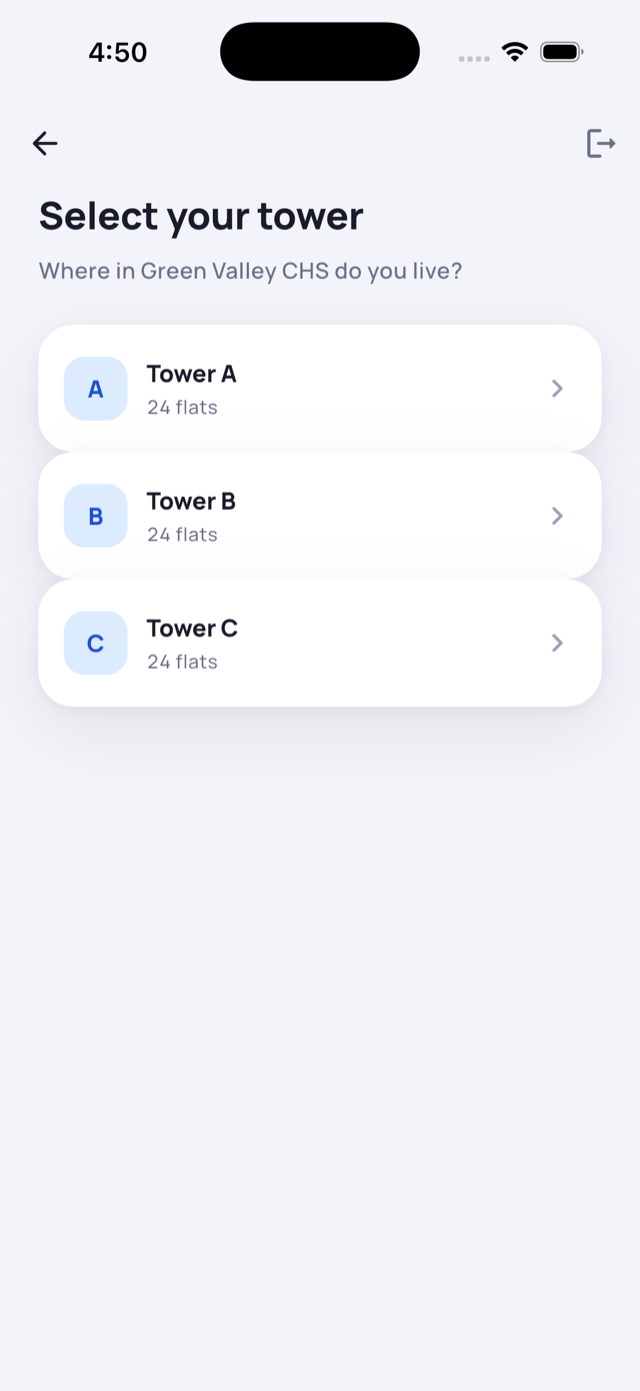
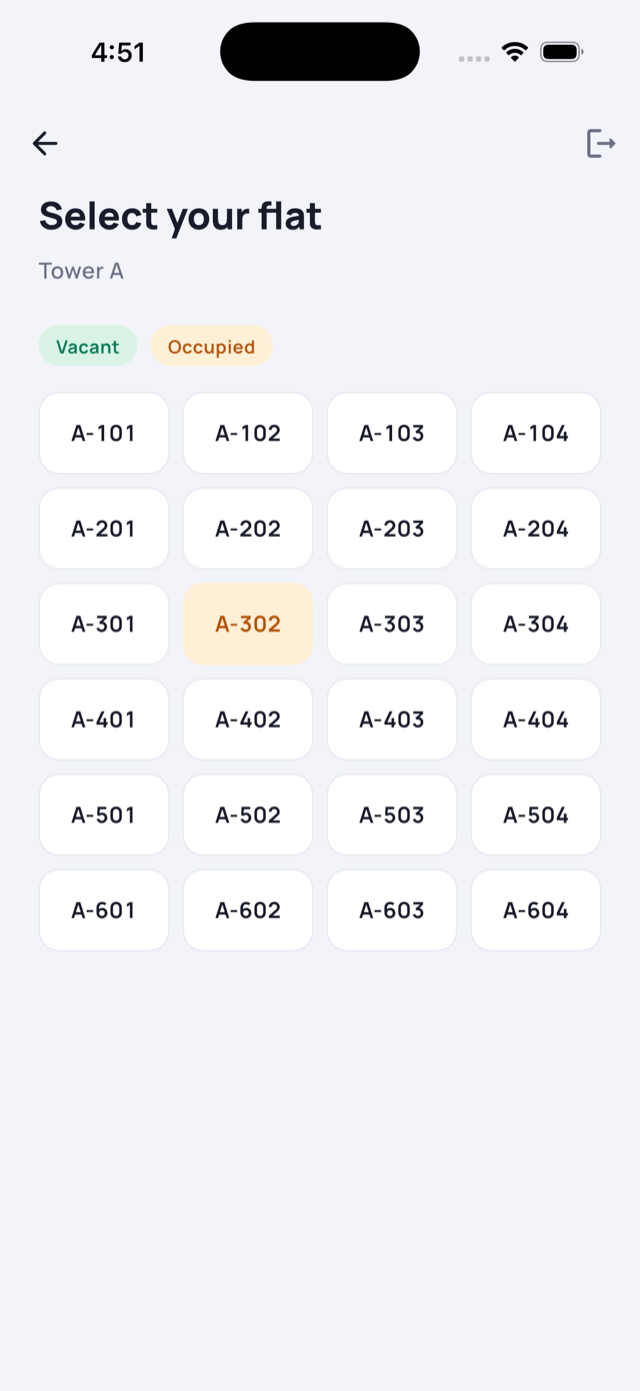
- Pick your tower, then your flat from the grid.
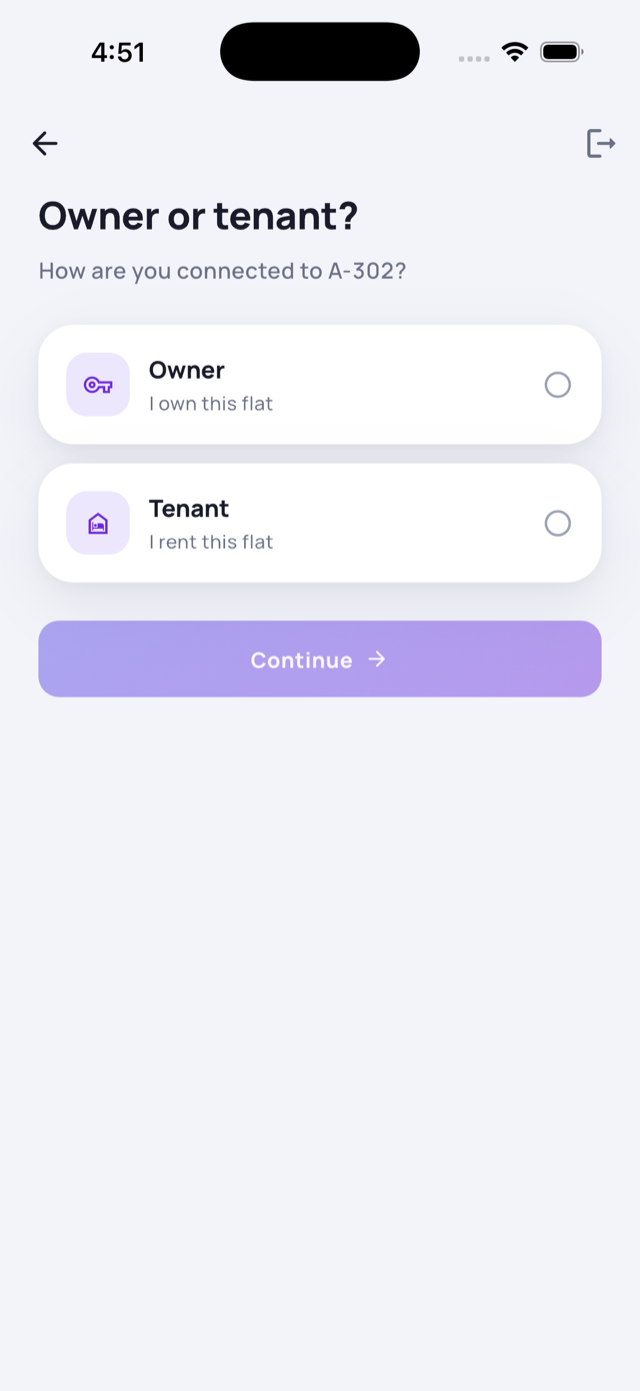
- Tell us how you’re connected to the flat - Owner or Tenant - and tap Continue.
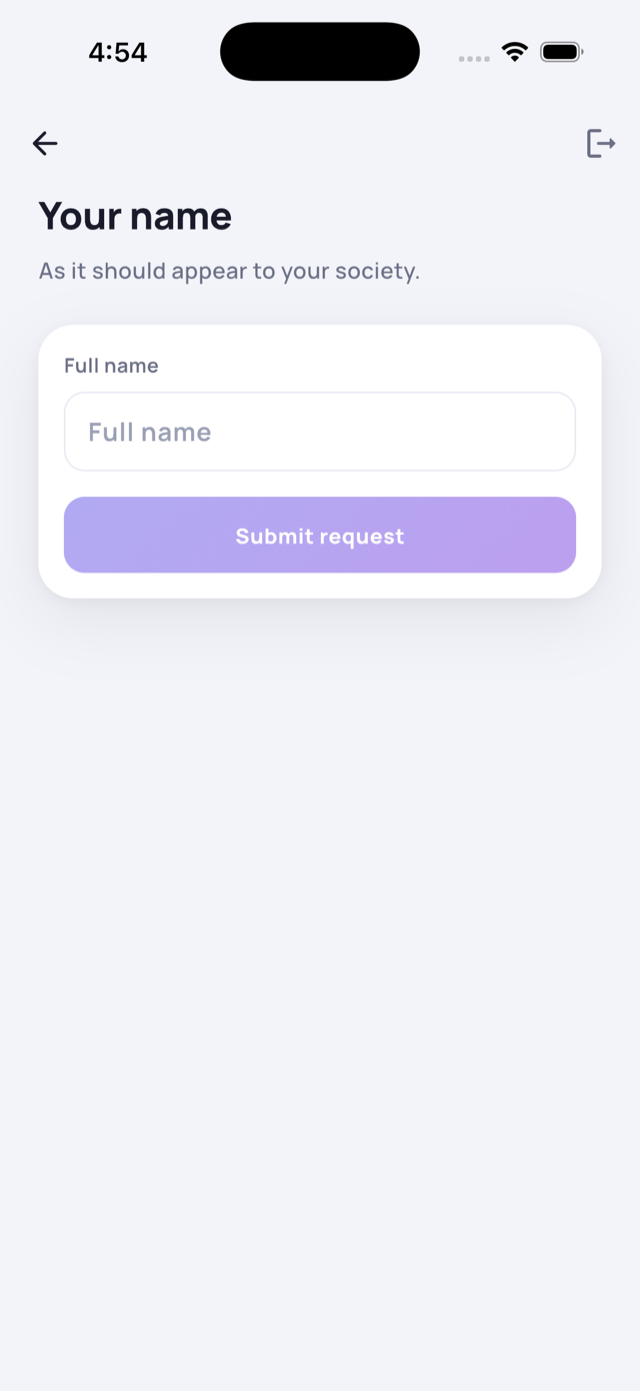
- Enter your full name and tap Submit request.
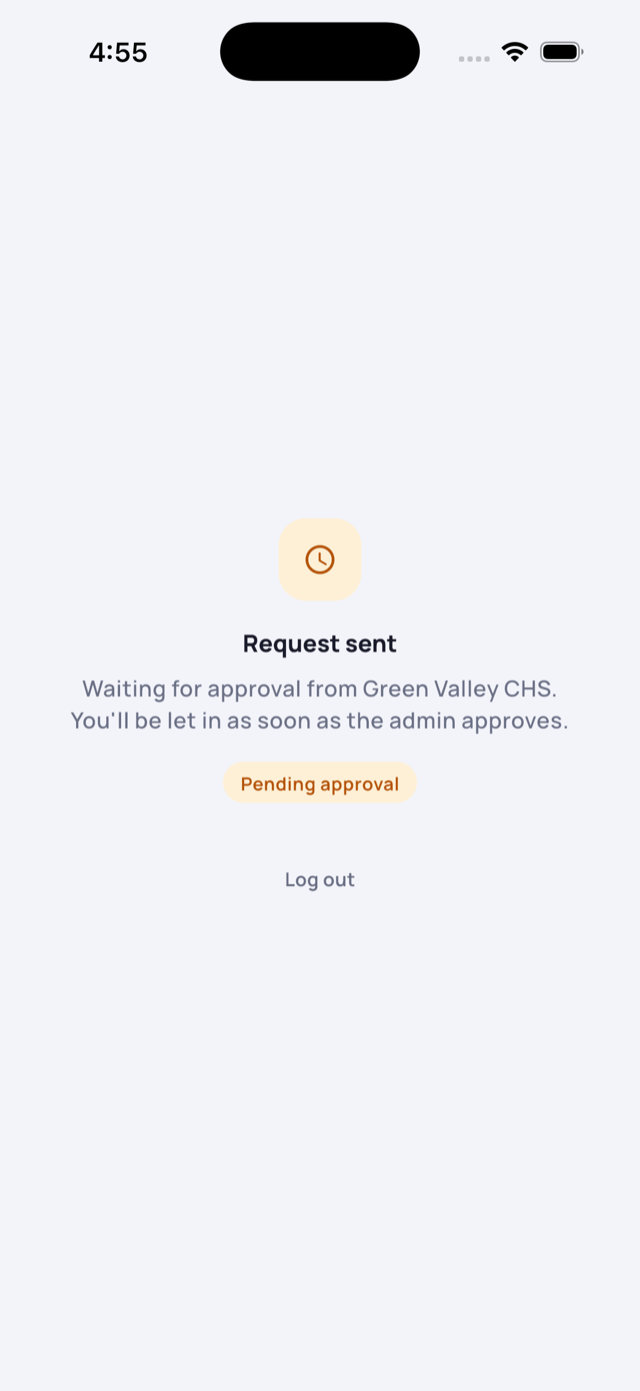
- You’ll see a “waiting for approval” screen. Your society admin reviews the request - once they approve it, you get full access. If it’s rejected, you can re-apply.
5 Home screen tour
Your everyday starting point - dues, quick actions, gate activity and notices at a glance.
What’s on the home screen
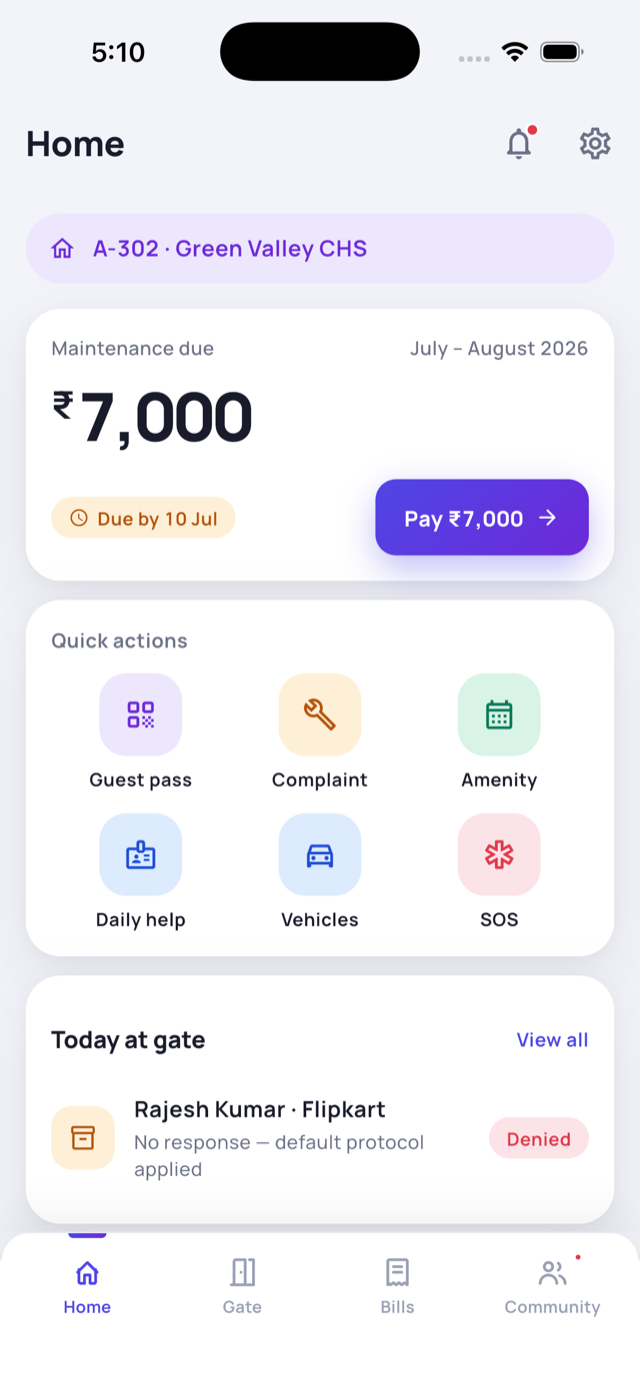
- Header - greets you by name and shows your society and flat, e.g. “Green Valley CHS · Flat A-302”. Top-right are the SOS button, the bell (notifications; a red dot means unread) and your profile.
- Maintenance due card - your current dues as a big, clear amount, with a Pay Now button.
- At-a-glance stats - today’s visitor count and your open complaints.
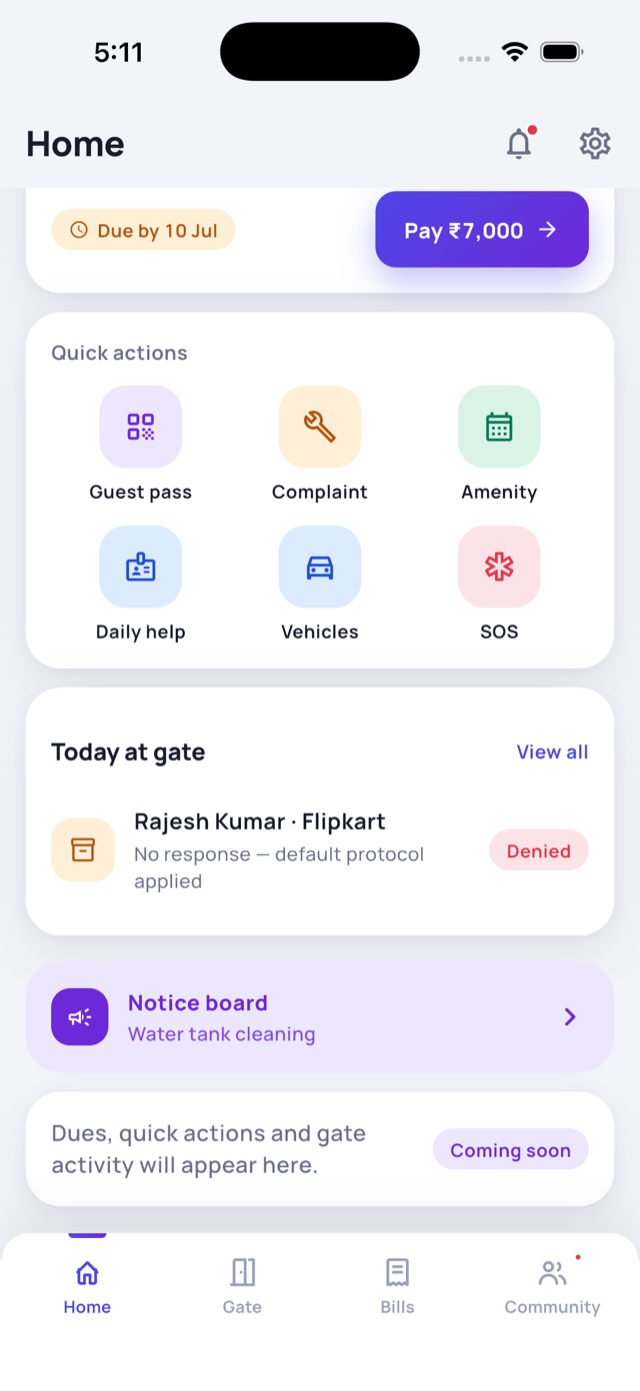
- Quick actions - one tap to Pay, Visitor, Complaint and Booking, with more tiles for Vehicles, Helpers, DailyPass and Services.
- Gate card - today’s gate activity for your flat; tap it to open the gate (see Gate & visitors).
- Notice board - your society’s newest notice.
6 Gate & visitors
Approve or deny visitors from anywhere, and see everything that happens at your gate.
Opening the gate
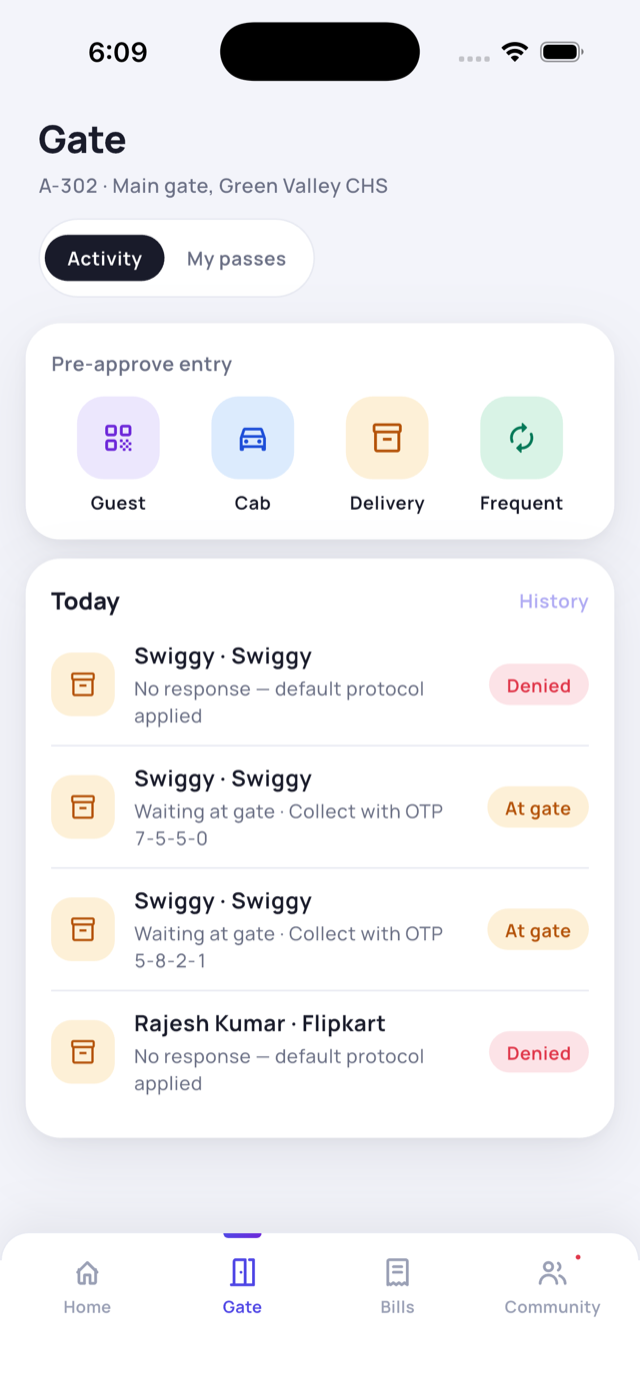
Tap the gate card on your Home screen to open the gate. The Activity tab shows shortcuts to pre-approve entry and a live feed of everything at your gate today.
Approving a visitor
When a guard logs a visitor for your flat, you get a notification and an approval request. Open it and choose:
- Allow - let them in.
- Deny - turn them away.
- Leave at gate - for deliveries, the guard holds the parcel for you (see Deliveries & parcels).
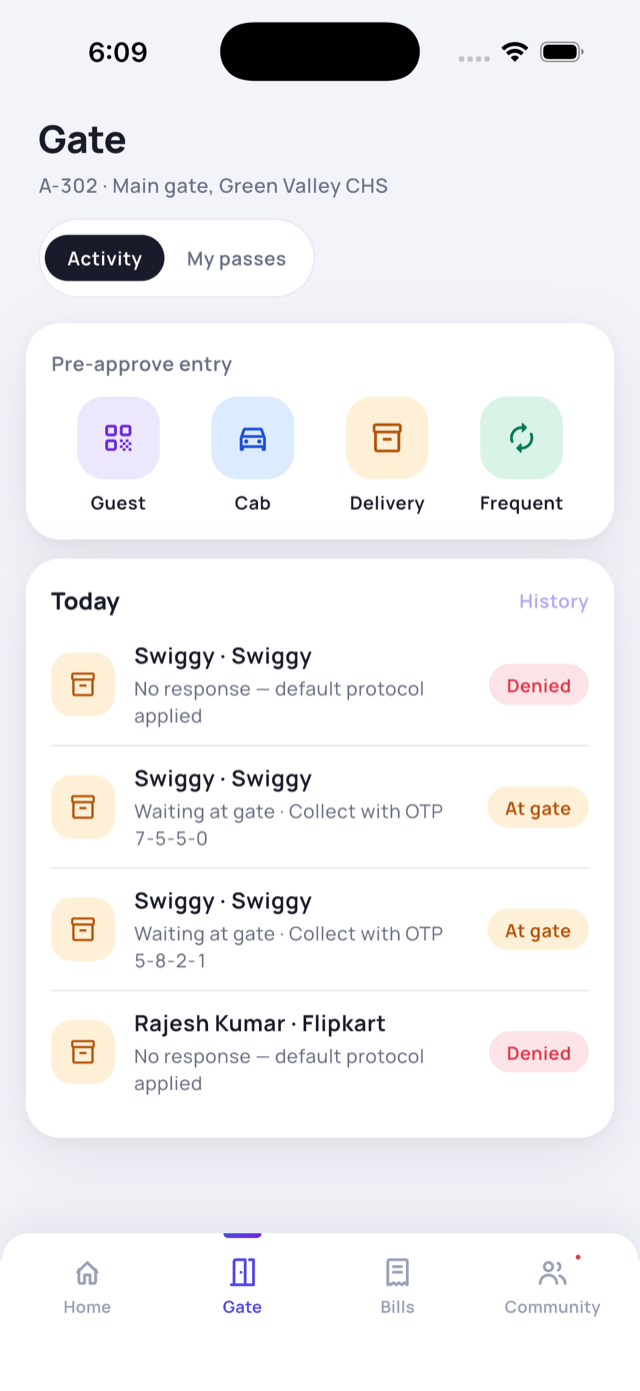
Each request has a short countdown (an automatic “IVR” phone call backs it up). If nobody responds in time, the society’s default protocol applies and the entry is marked Denied - no response, which you’ll see in the feed.
Statuses you’ll see
- At gate - a parcel is waiting for you to collect.
- Denied - turned away, or no response in time.
- Allowed - you let them in.
7 Guest passes
Invite a guest in advance with a QR code and short code they show at the gate.
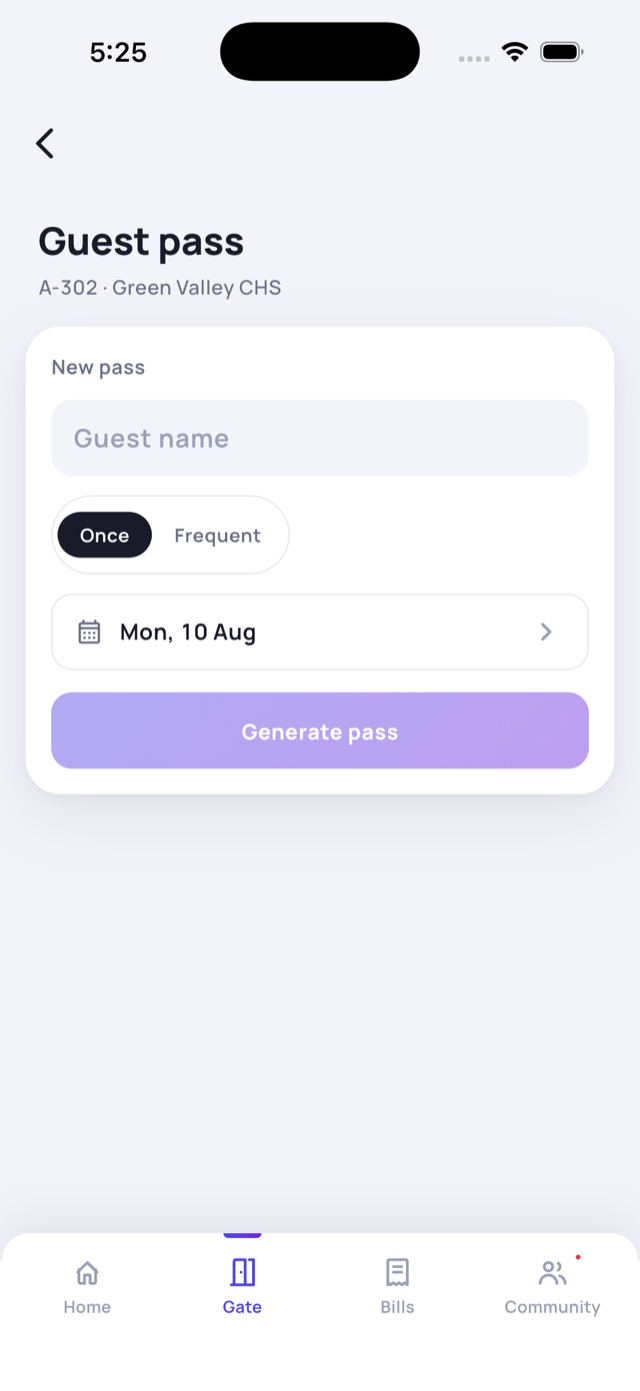
- Open Guest Pass from Home → See All (the More menu) — or from the Home gate card → Pre-approve entry → Guest, or the Visitor quick action on Home.
- Enter the guest’s name.
- Choose Once (valid for one chosen day) or Frequent (valid until a chosen day - great for regular visitors).
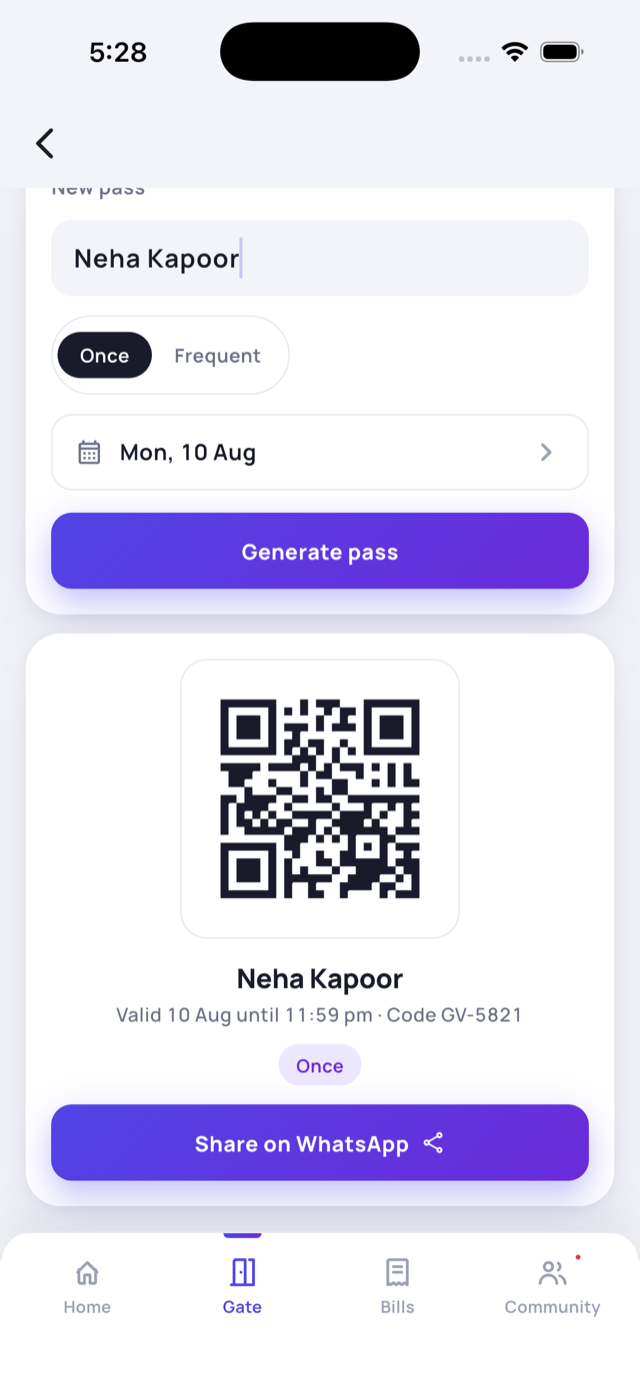
- Tap Generate pass. You’ll get a QR code and a short code (e.g. GV-5821).
- Tap Share on WhatsApp to send it to your guest. At the gate, they show the QR or read out the code.
Managing passes
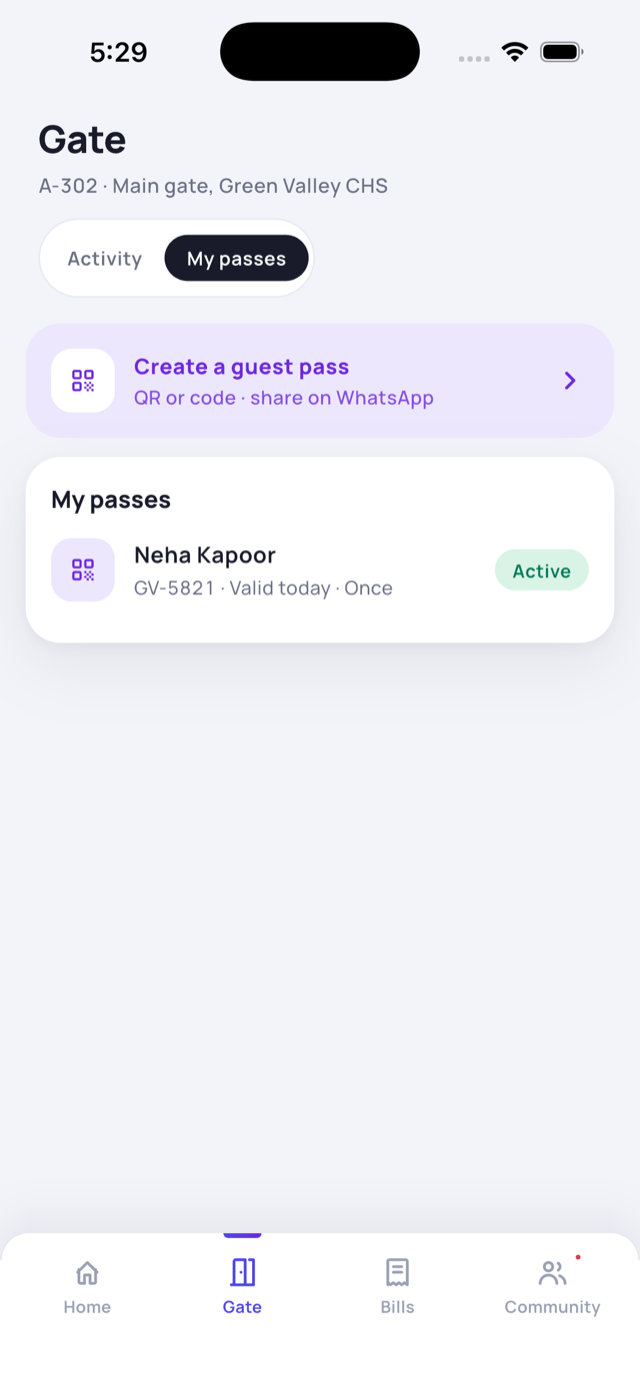
Open the My passes tab on the gate to see active passes and their validity. You can revoke a pass any time if plans change.
8 Pre-approvals
Expecting a cab or a delivery? Let the guard know so they wave it straight in.
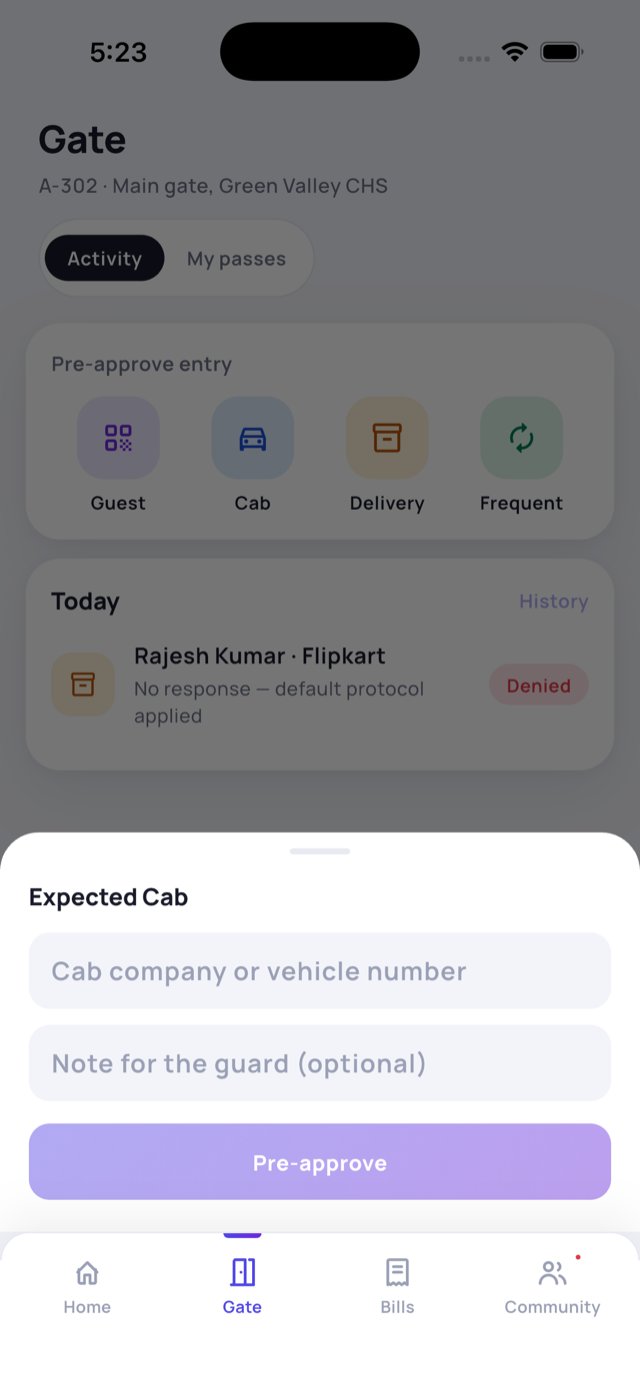
- Open the gate from your Home gate card → Pre-approve entry, then tap Cab, Delivery, Guest or Frequent.
- Add the details - for a cab, the company or vehicle number; for a delivery, the company.
- Optionally add a note for the guard.
- Tap Pre-approve. When your visitor arrives, the guard already knows to expect them - no call needed.
9 Deliveries & parcels
Not home? Have the guard hold your parcel and collect it later with a one-time code.
Leave at gate
When a delivery arrives and you approve it as Leave at gate (or the guard chooses it), the guard keeps the parcel safe for you. It appears in your Gate feed as At gate · Collect with OTP.
Collecting your parcel
- Open the gate from your Home gate card - held parcels show a collect OTP (a short 4-digit code) right on the card.
- Go to the gate and read the OTP to the guard.
- The guard confirms it and hands over your parcel. Done.
10 Bills & payments
See exactly what you owe, pay by UPI or bank transfer, and keep a full record.
Your dues
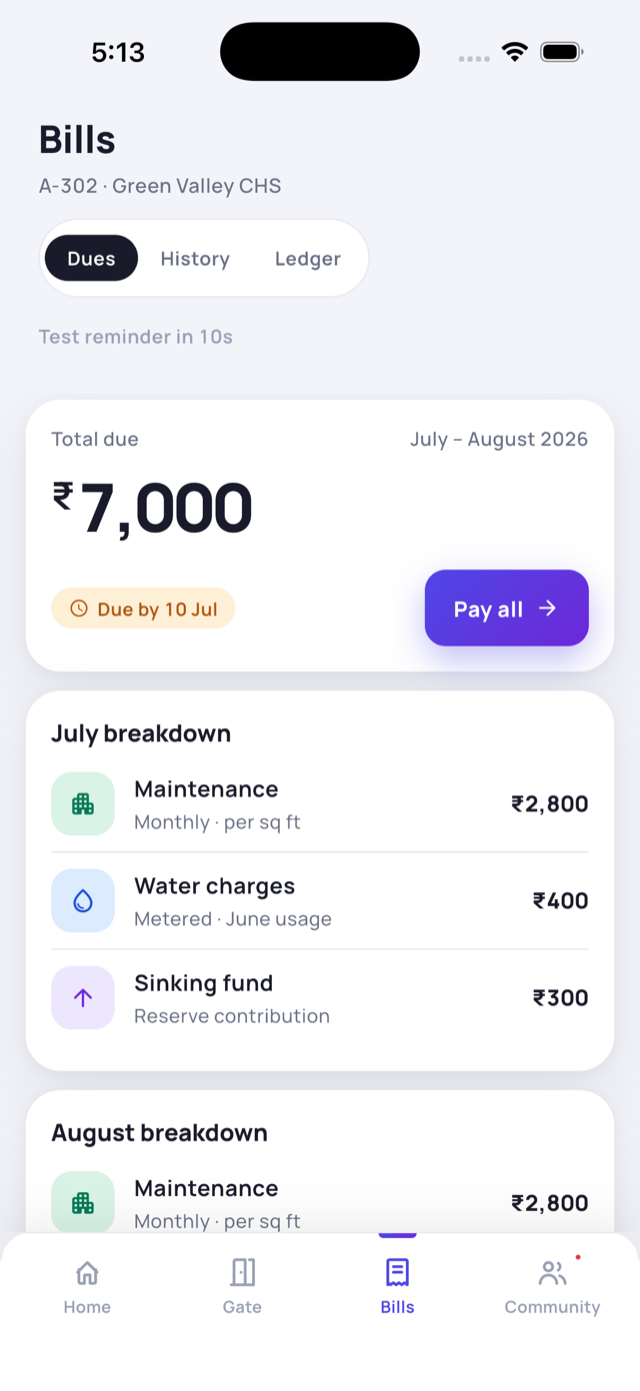
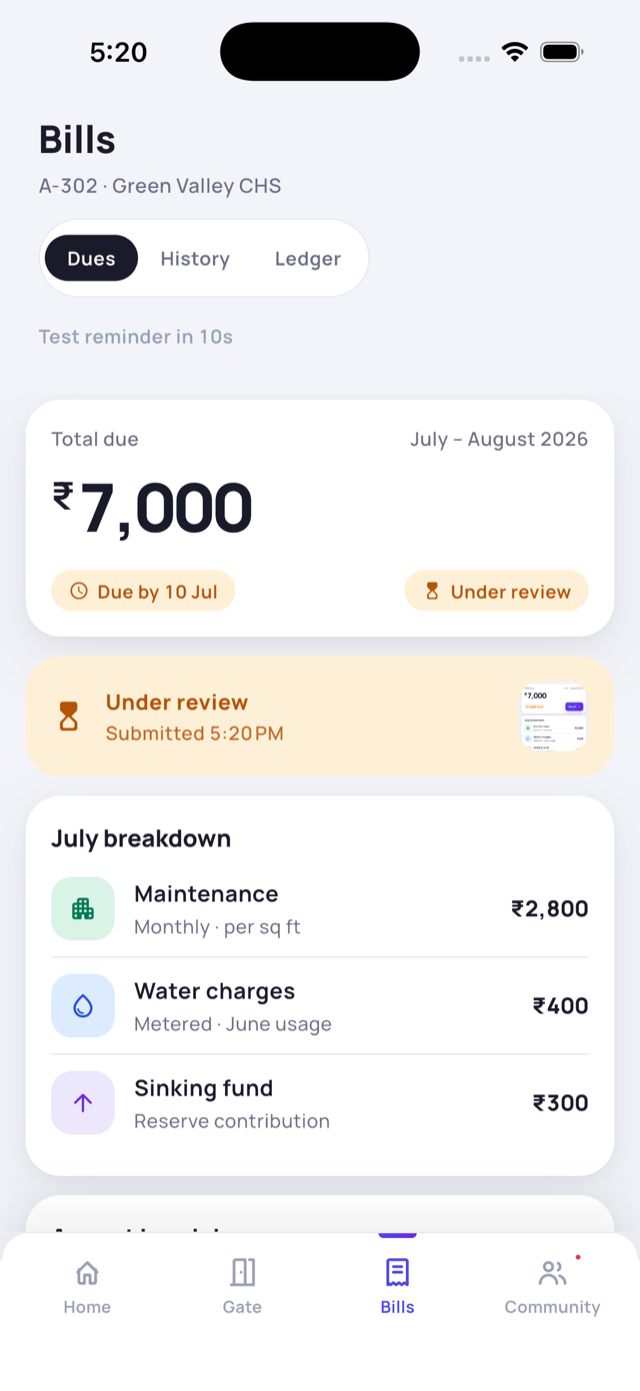
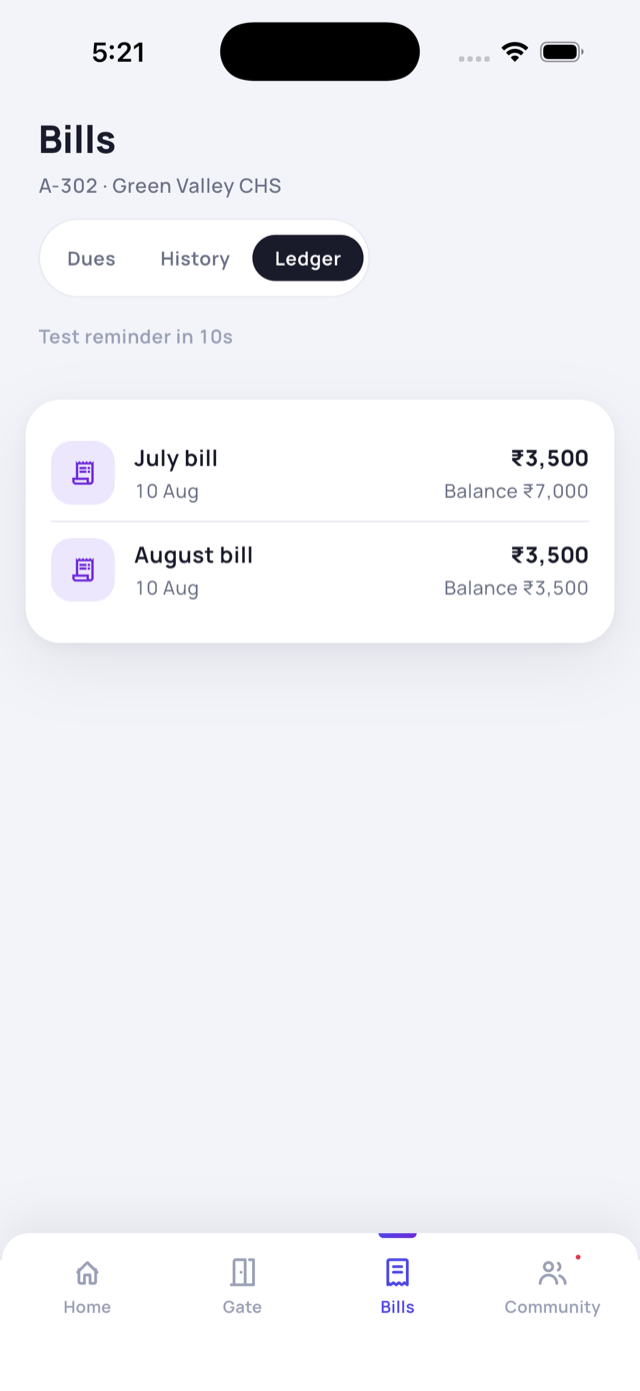
Open the Payments tab (its screen is titled Maintenance & Payments). The Dues tab shows your total, the months it covers, and a full breakdown - maintenance, water, sinking fund and any amenity fees. History shows paid bills and Ledger shows your running balance.
Paying a bill
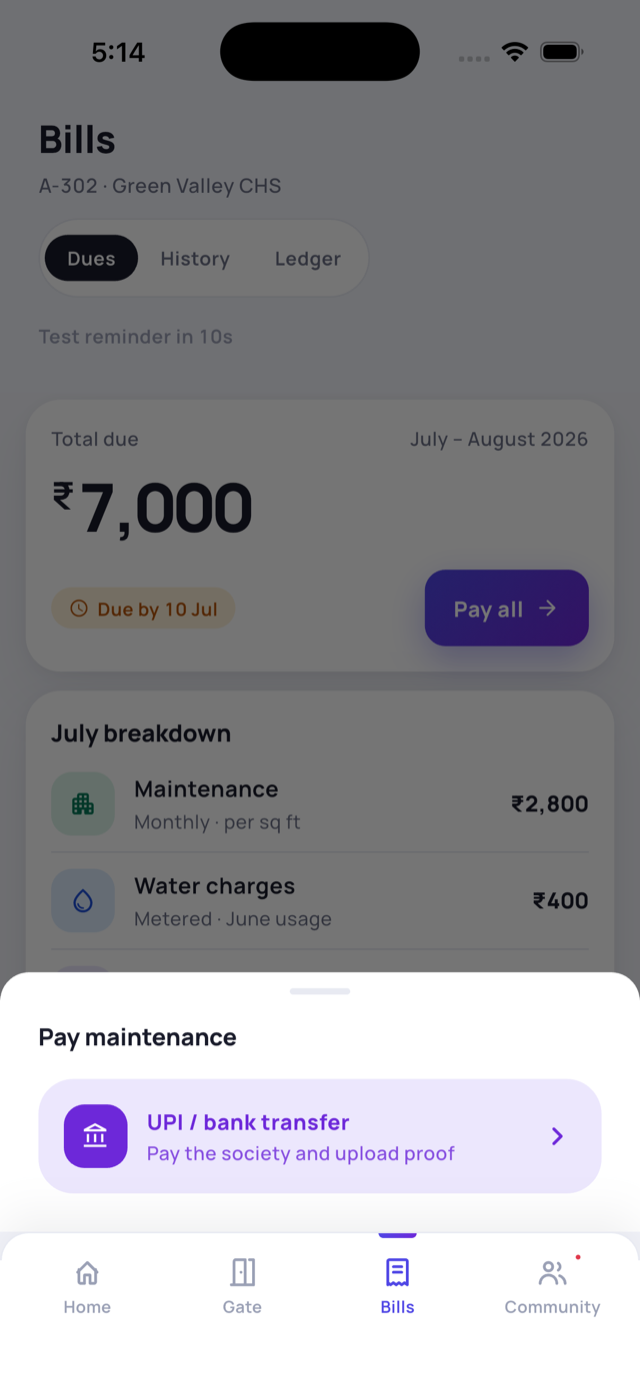
- Tap Pay (or Pay all).
- Choose UPI / bank transfer.
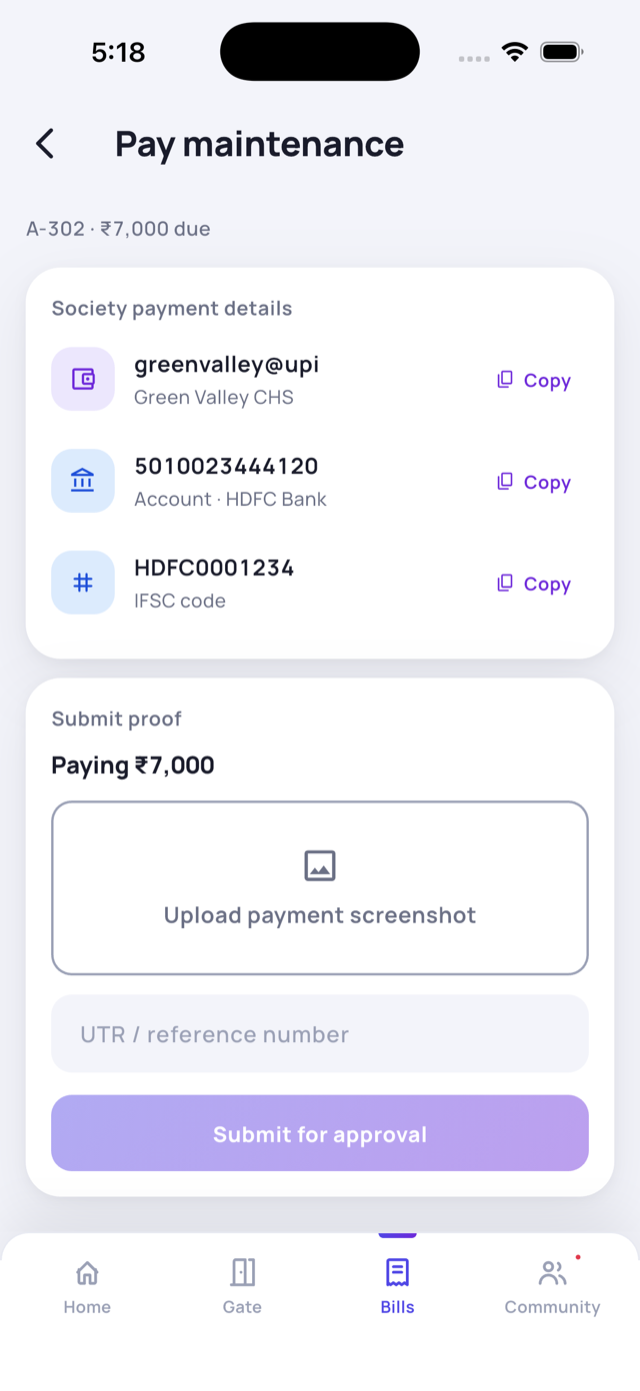
- You’ll see your society’s UPI ID, bank account and IFSC - tap to copy, or scan the QR. Pay using any UPI or banking app.
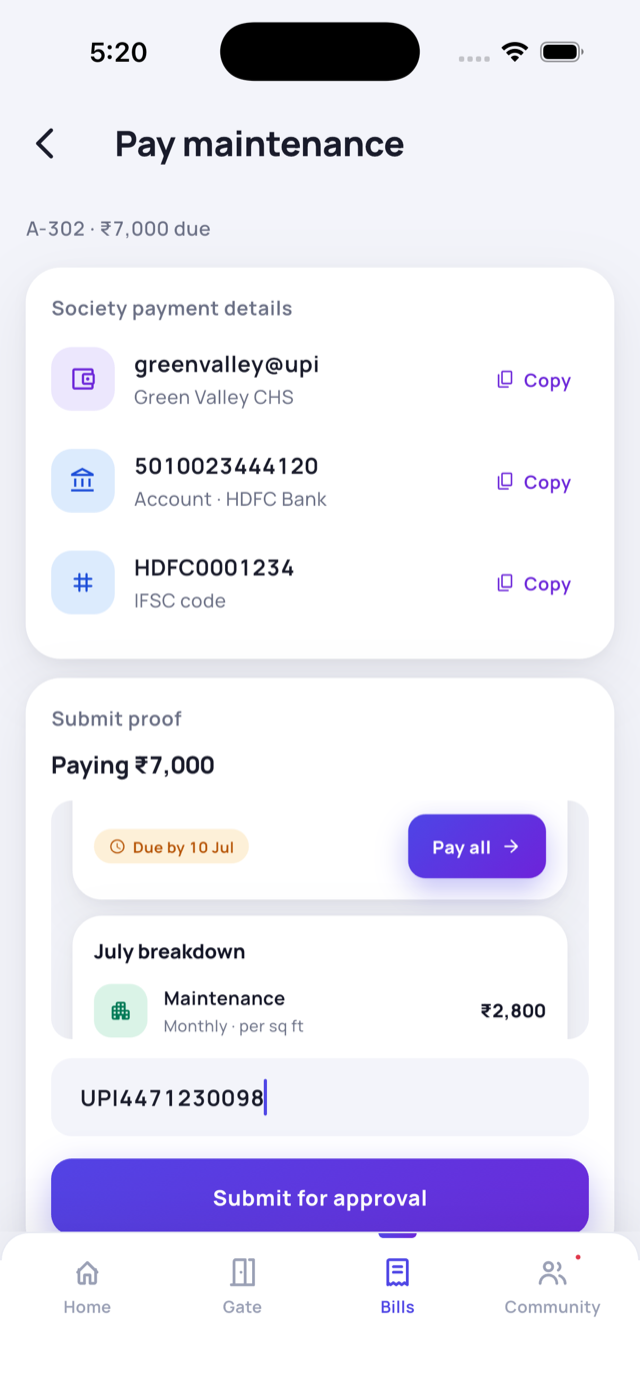
- Come back and upload a screenshot of the payment plus the UTR / reference number.
- Tap Submit for approval.
After you submit
- Under review - your admin is checking the payment; your dues stay marked until they approve it.
- Approved - the bill is settled and you get a receipt.
- Rejected - if something didn’t match, you’ll be asked to submit again.
11 Complaints
Raise an issue with a photo, track it to resolution, and rate the fix.
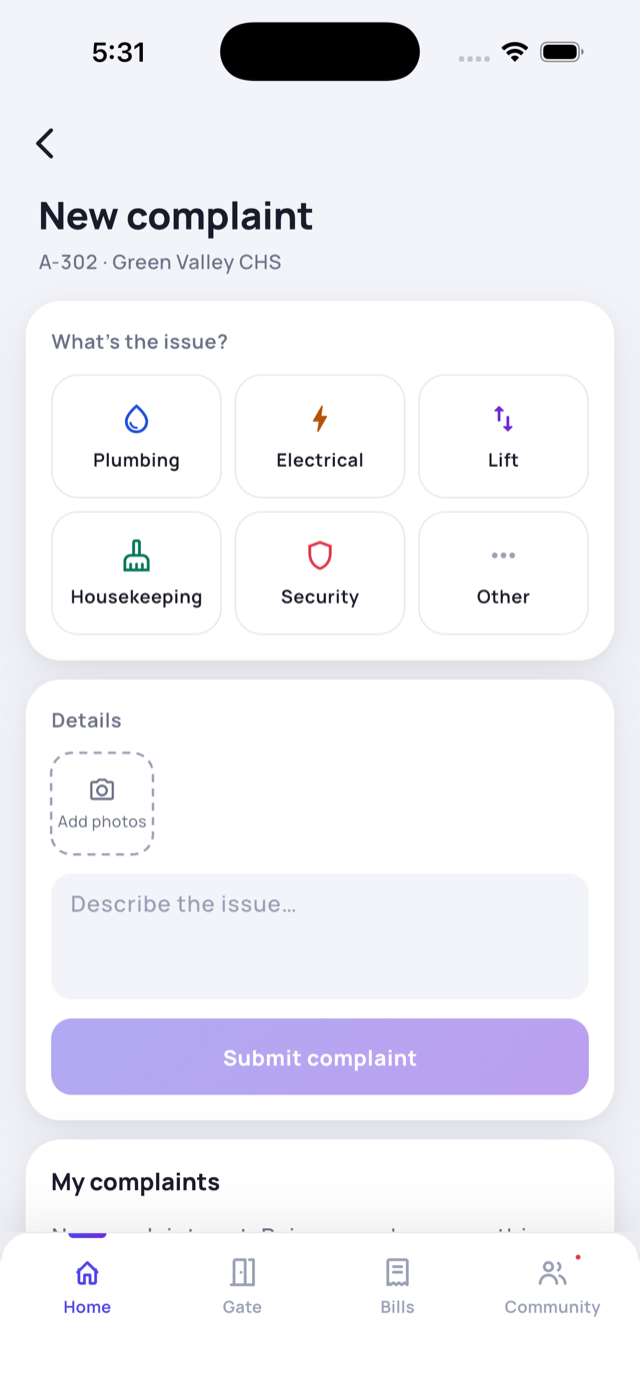
- Tap the Complaint quick action on Home.
- Pick a category - Plumbing, Electrical, Lift, Housekeeping, Security or Other.
- Optionally add photos, then describe the issue.
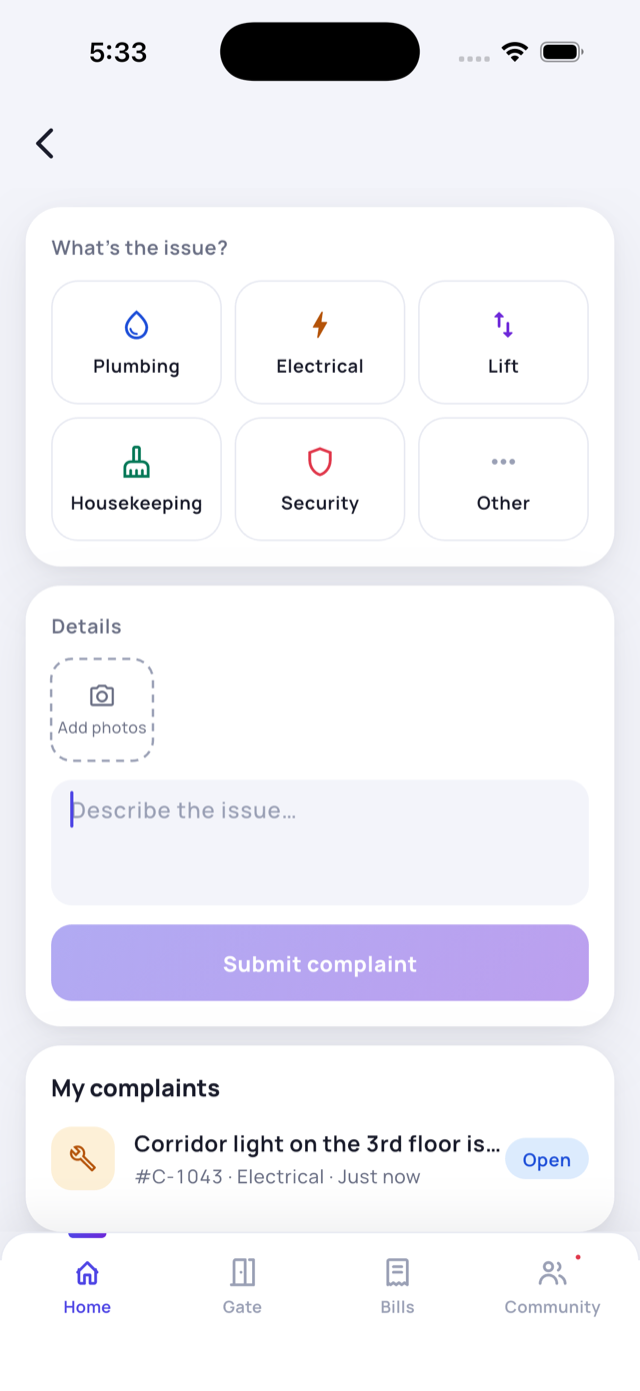
- Tap Submit complaint. It appears in My complaints with a ticket number.
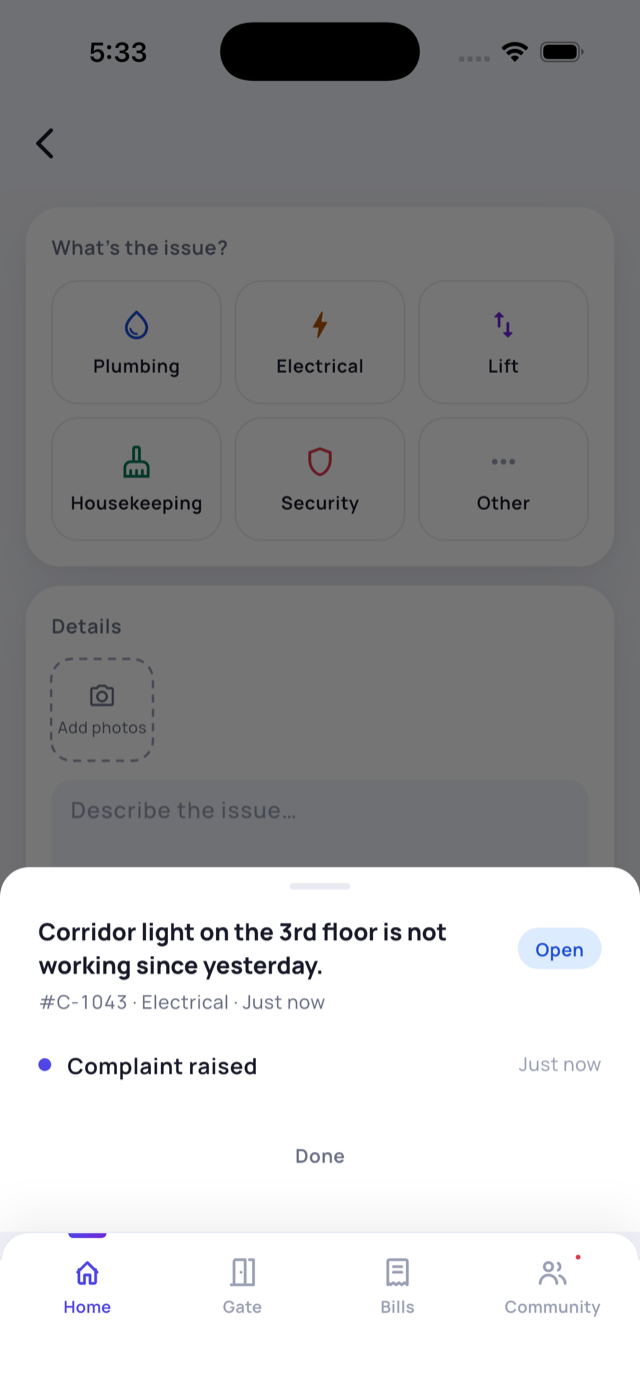
- Tap the complaint to see its timeline - raised, in progress, resolved.
- When it’s resolved you can rate the fix, or reopen it if the problem is still there.
12 Notices
Never miss a society announcement - pinned notices stay at the top.
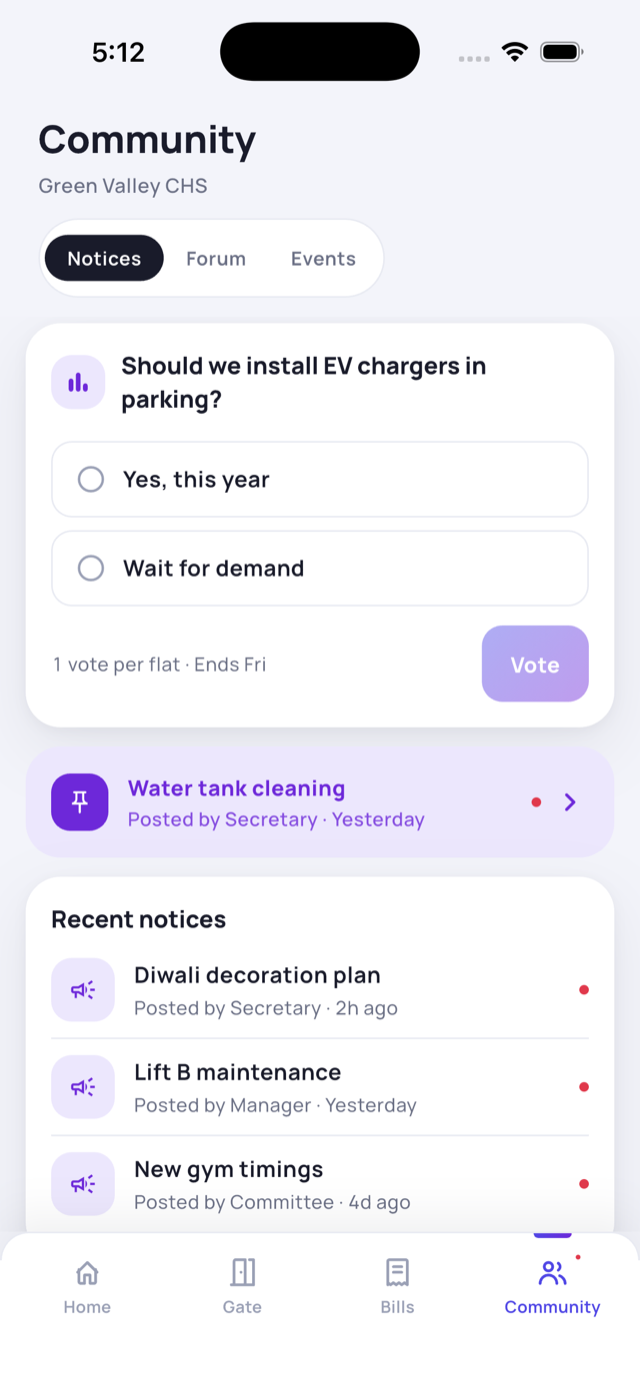
Notices live under Community → Notices (and the newest one also shows on your Home screen). Important announcements are pinned to the top. A red dot marks notices you haven’t read yet - open one to mark it read.
13 Community
Talk to neighbours, RSVP to events, and vote in society polls.
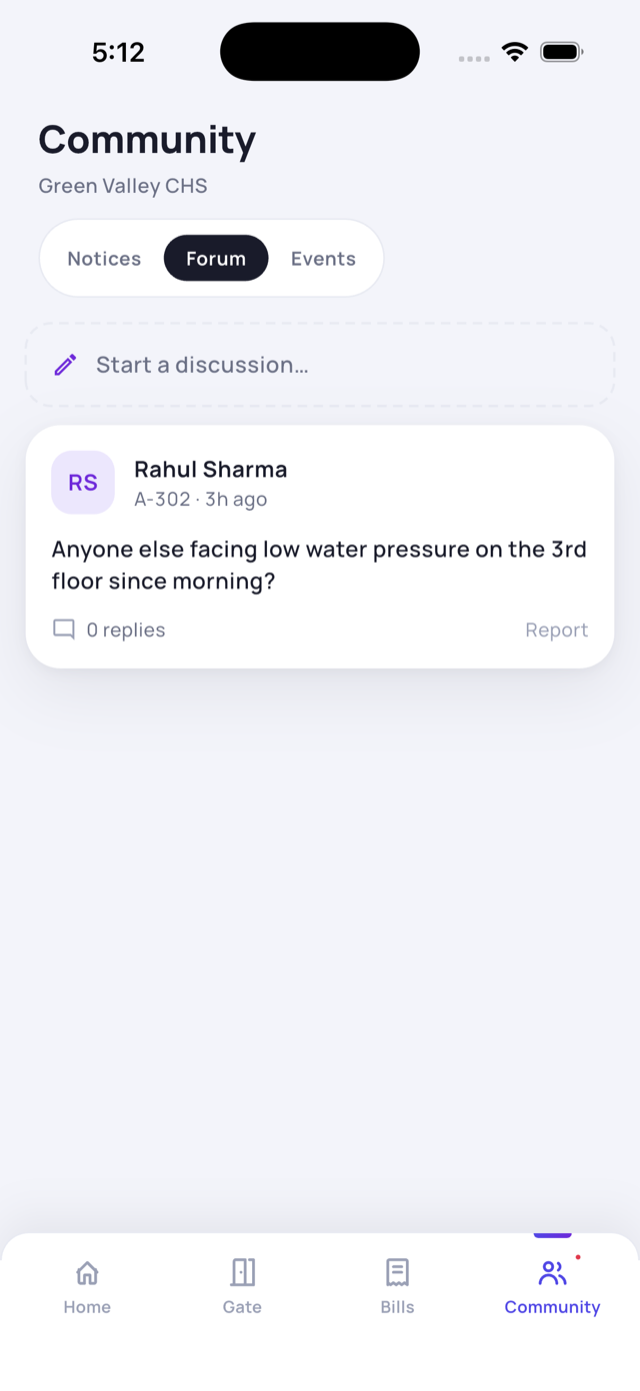
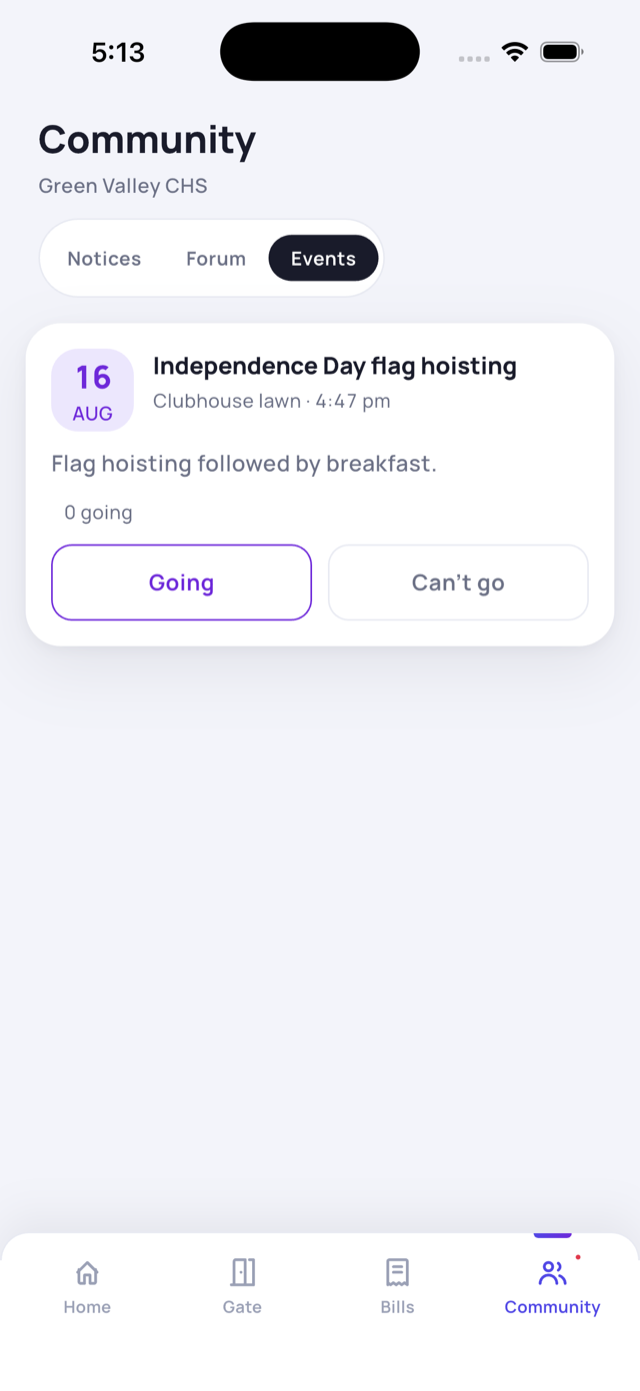
The Community tab has three parts:
- Notices - society announcements (see above). Polls also appear here.
- Forum - start a discussion or reply to neighbours. If a post breaks the rules, you can report it.
- Events - see what’s coming up and tap Going or Can’t go to RSVP. Past events are marked done.
Polls
When your society runs a poll, tap your choice and Vote. It’s one vote per flat and your vote is anonymous - the result shows totals only.
14 Amenities
Book the clubhouse, gym, pool or court - free or paid, in a few taps.
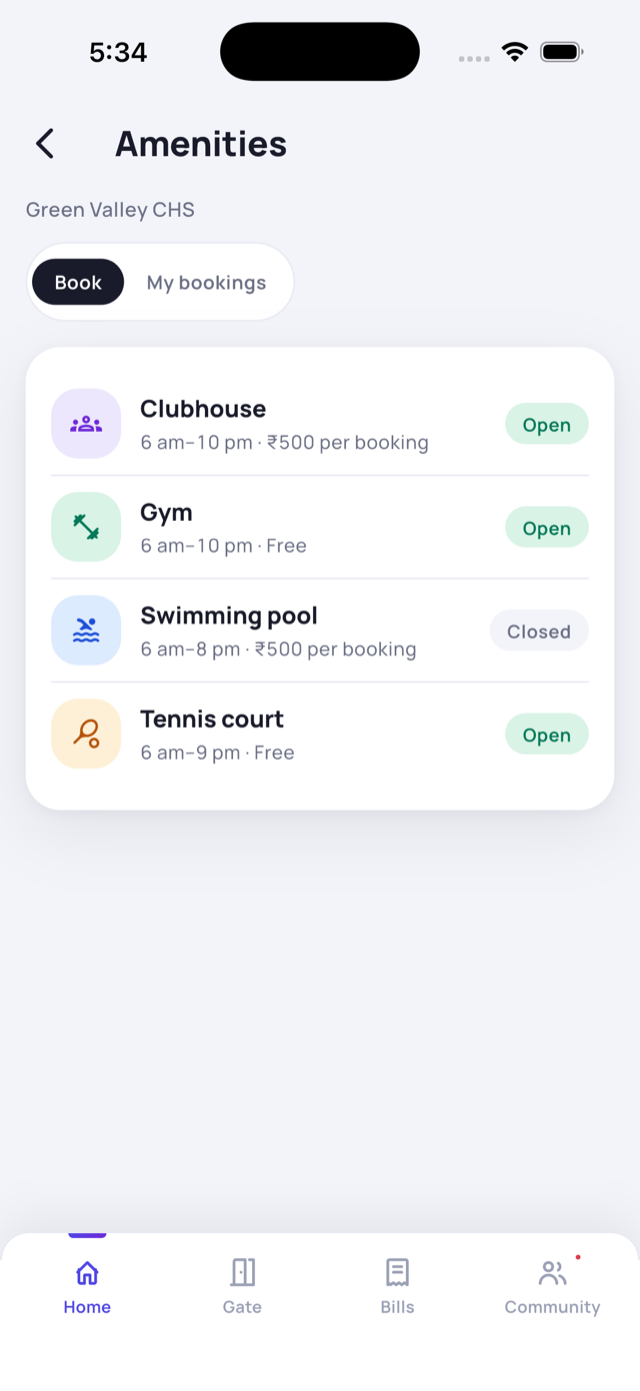
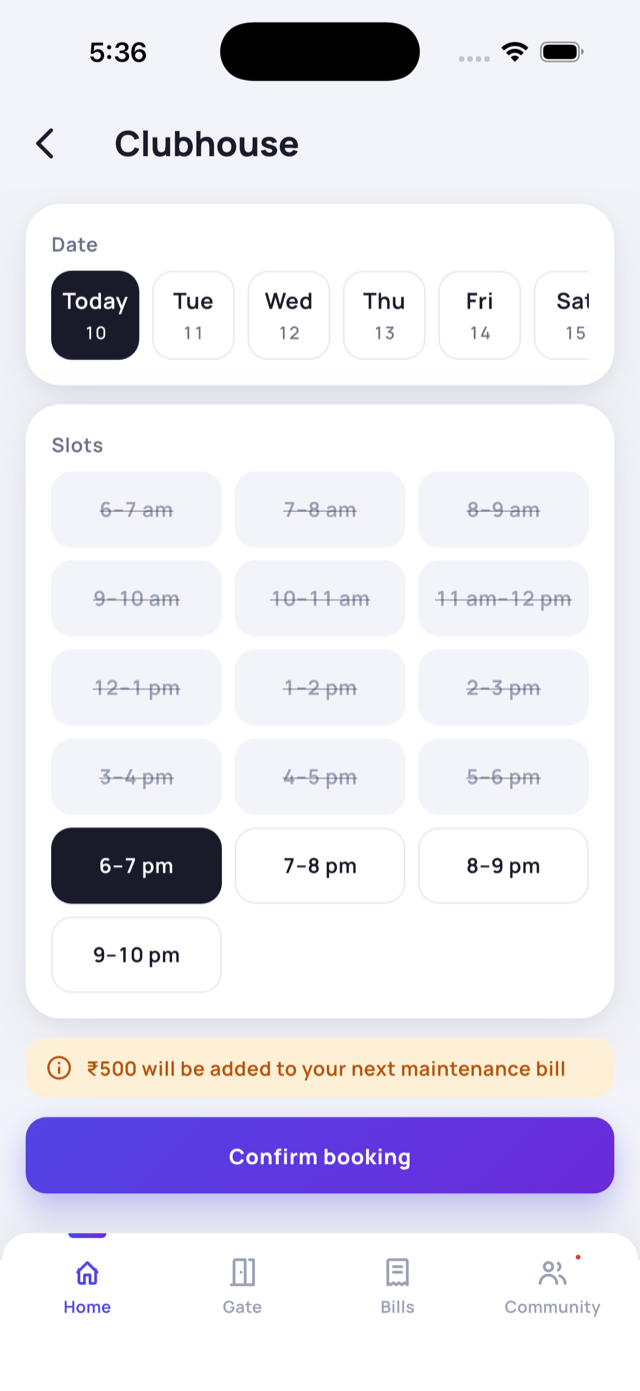
- Tap the Booking quick action on Home to see what’s available, with hours and fees.
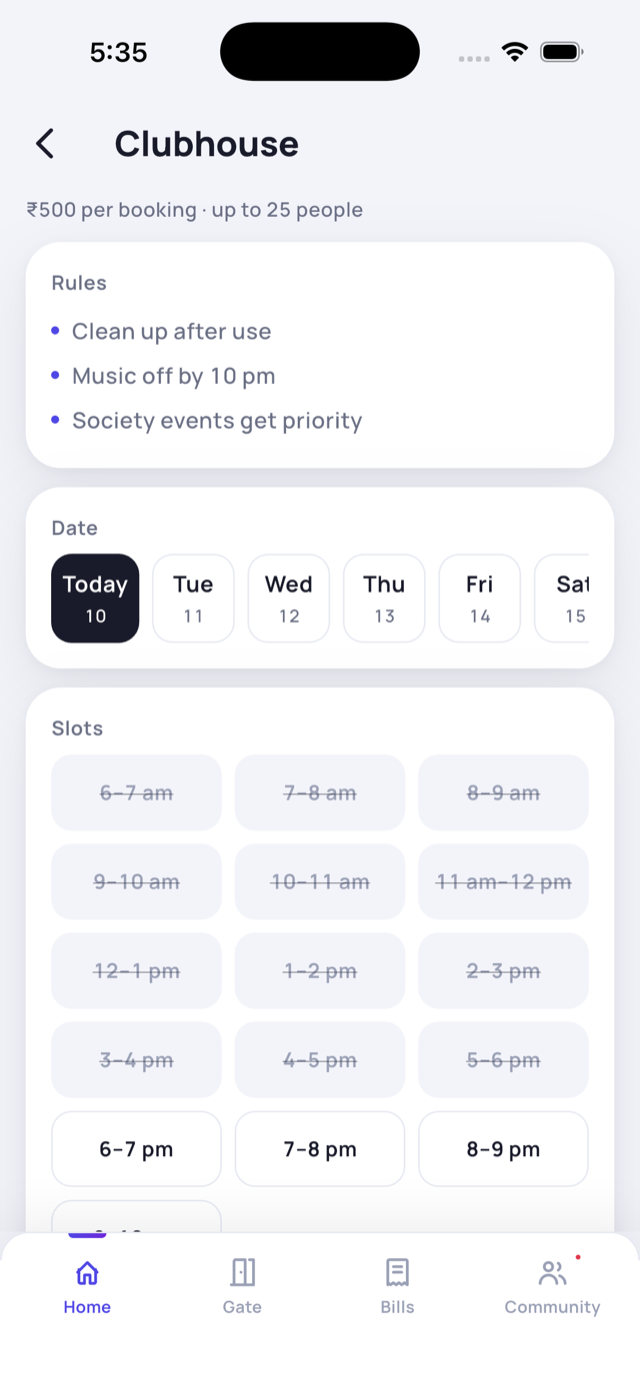
- Tap an amenity, pick a date, then a time slot. Past and taken slots are greyed out.
- For paid amenities you’ll see the fee and a note that it’s added to your next maintenance bill - no separate payment.
- Tap Confirm booking. Your slot turns green.
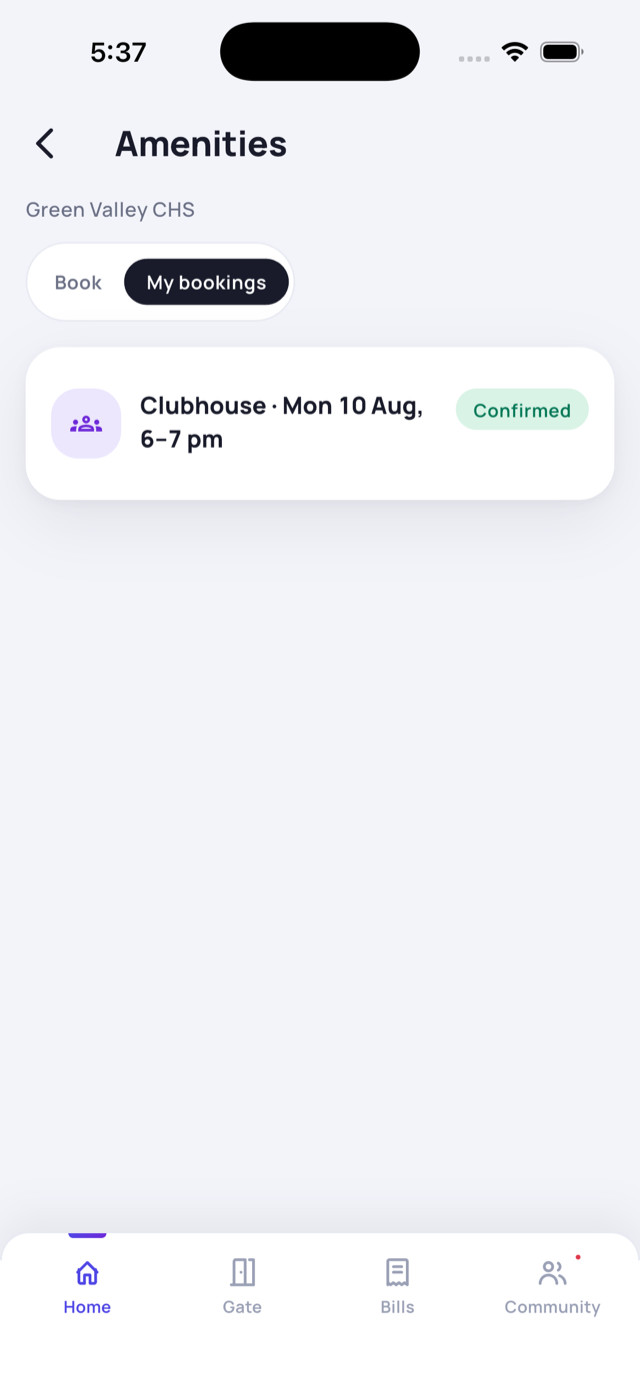
- See everything under My bookings, where you can cancel within the allowed window.
15 Helpers
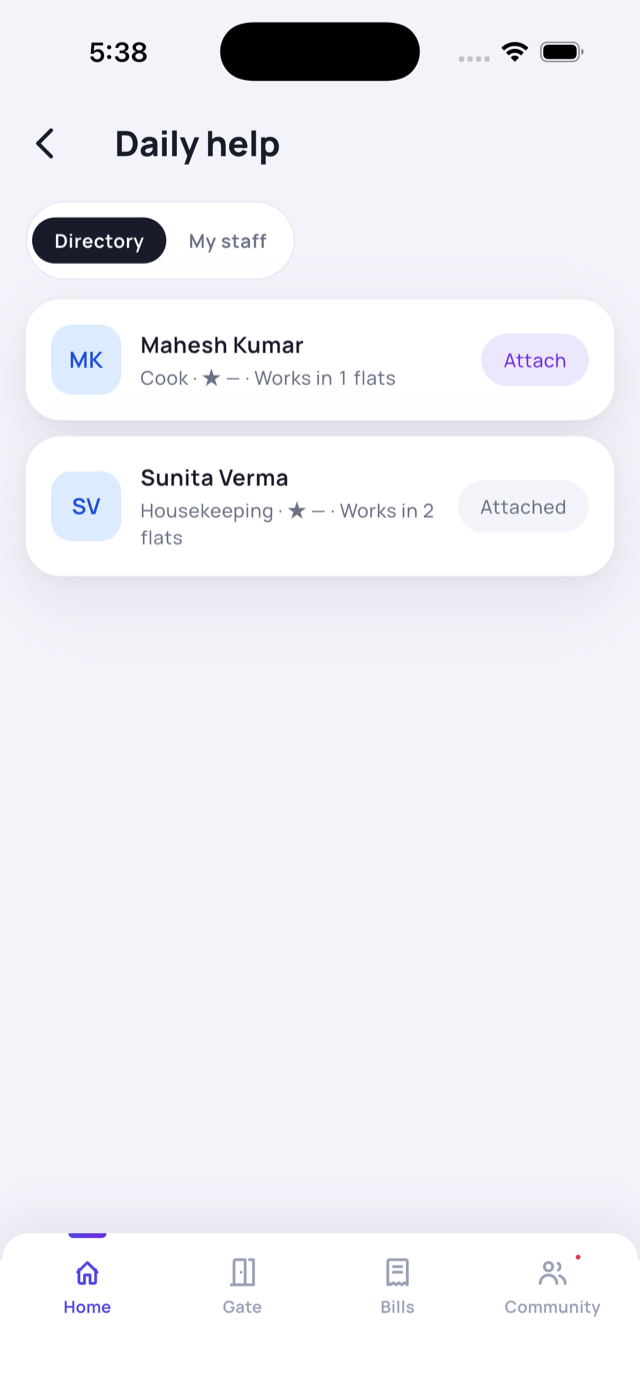
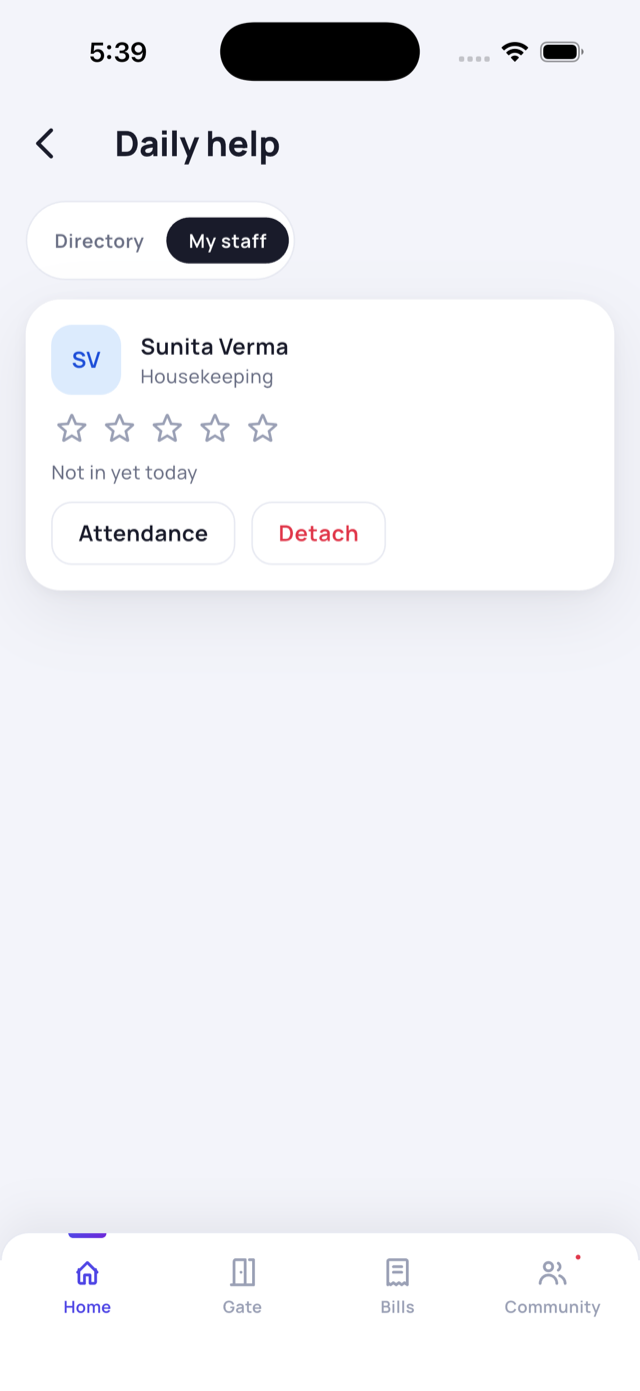
Add your maid, cook or driver as a Helper - once approved, each gets a gate QR the guard scans.
- Open Helpers from Home (a quick-action tile) or Home → See All (the More menu).
- Tap Add Helper, enter their Name and Help Type (Cook, Maid, Driver…), and tap Save.
- The request shows Pending approval until your society admin approves it.
- Once approved, the helper gets their own gate QR - tap Share QR to send it, or show it at the gate. Edit or Remove a helper anytime (removing stops their gate QR).
16 Vehicles
Register your cars and bikes, and find the owner of a wrongly-parked vehicle.
Add your vehicle
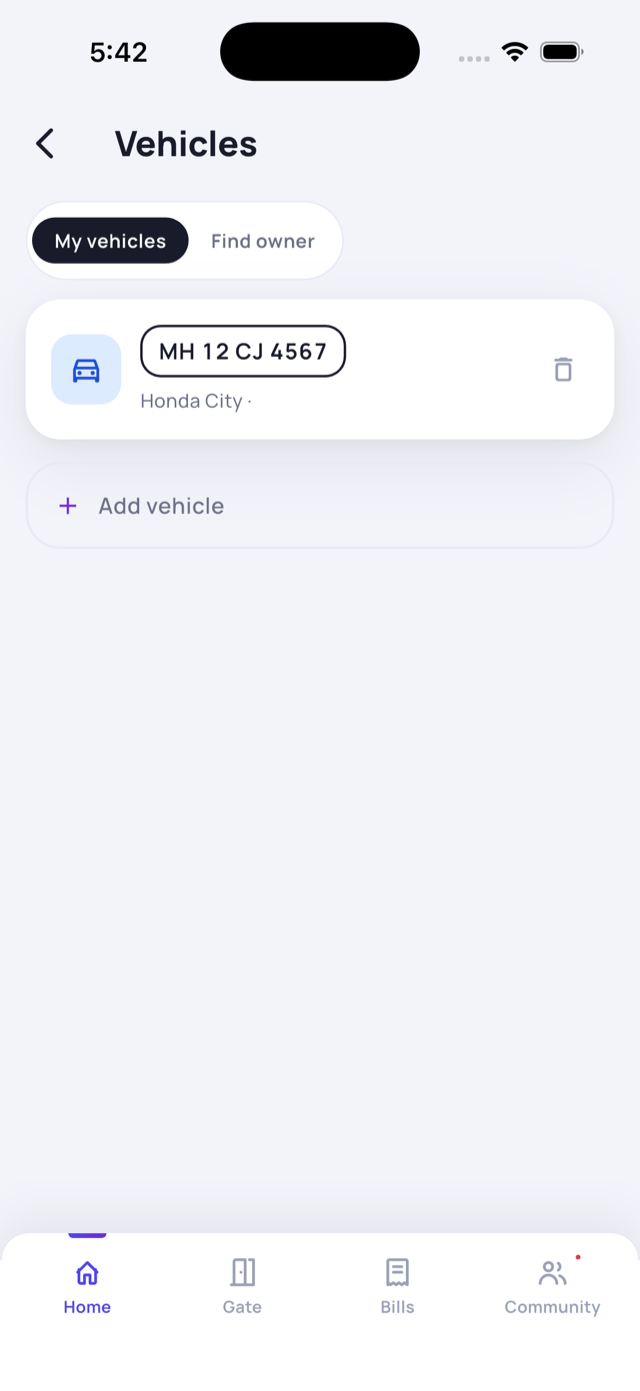
- Open Vehicles from Home (a quick-action tile) or Home → See All (the More menu).
- Tap Add vehicle, choose Car or Bike, and enter the number plate (model and colour are optional).
- Tap Save. It appears under My vehicles.
Find a wrongly-parked owner
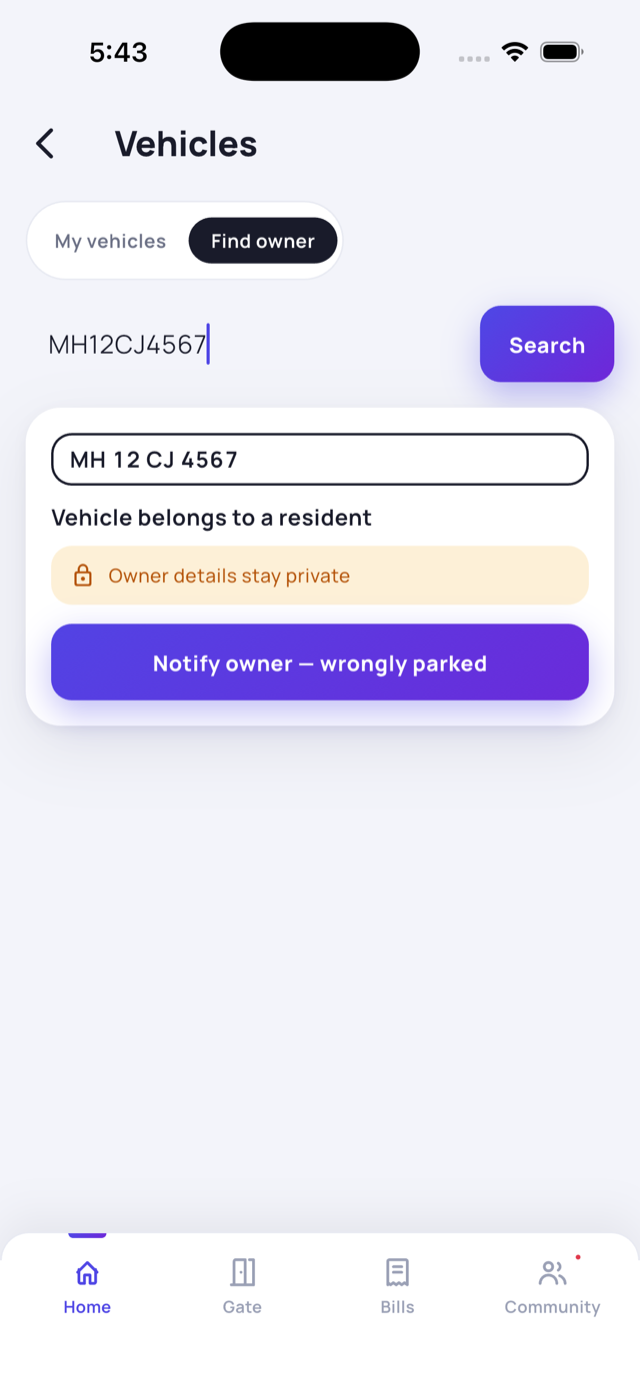
- Open the Find owner tab and enter a number plate.
- If it belongs to a resident, you can tap Notify owner - wrongly parked.
- The owner gets a heads-up - and their personal details always stay private.
17 SOS / emergency
One press-and-hold to alert your guards, admin and trusted neighbours in an emergency.
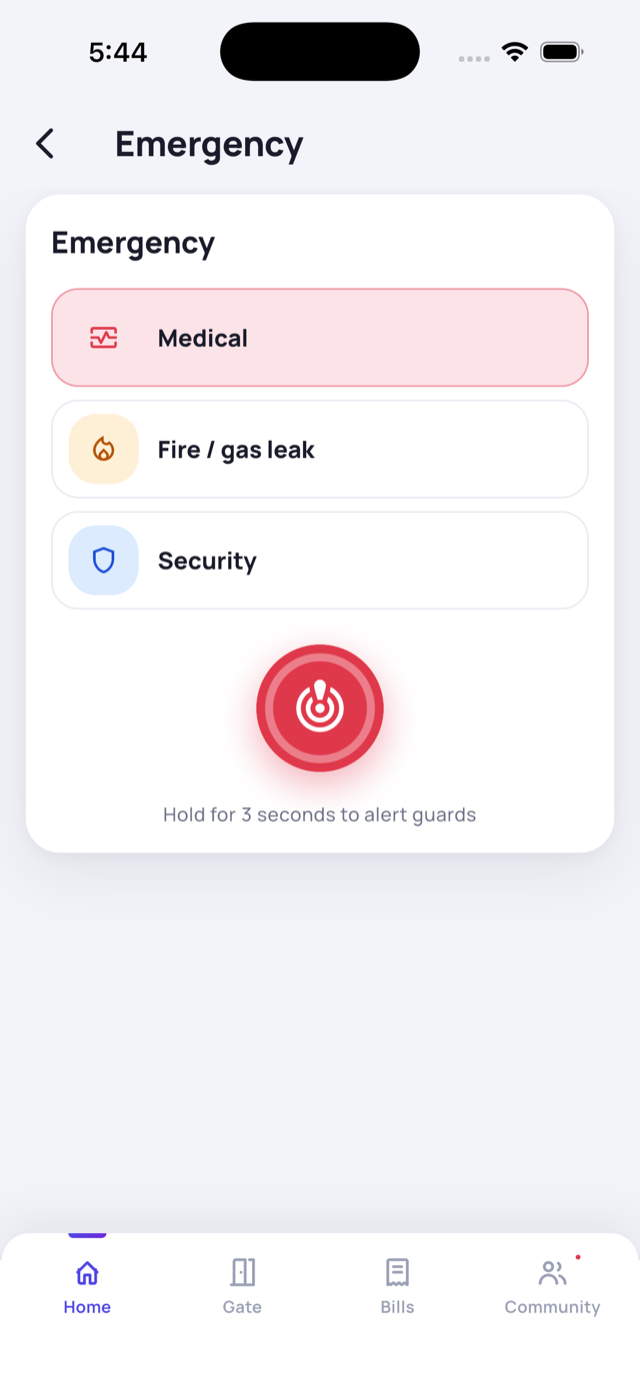
- Tap the SOS button at the top of your Home screen.
- Pick the type - Medical, Fire / Gas Leak, Security or Lift / Elevator.
- Press and hold the big red button for 3 seconds to send the alert. The hold prevents accidental triggers.
- Your guards, admin and trusted neighbours are alerted instantly with your flat details so help can reach you fast.
18 Family members
Add the people in your household - and let them approve visitors too.
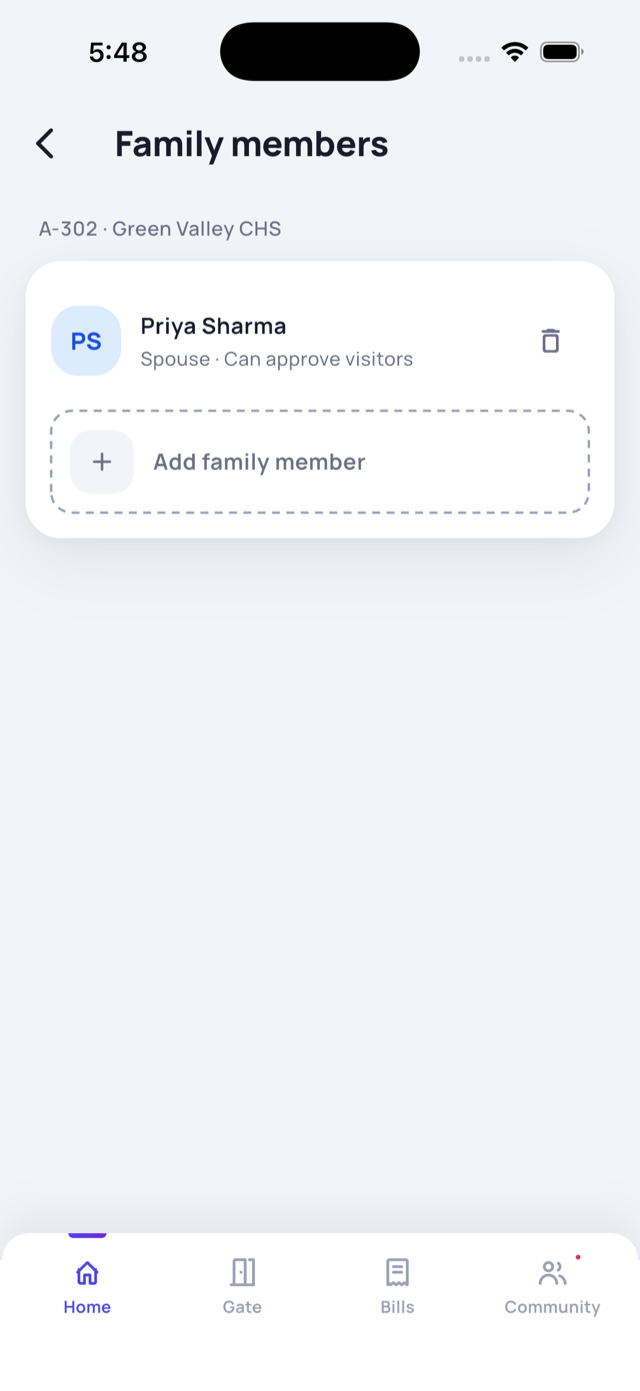
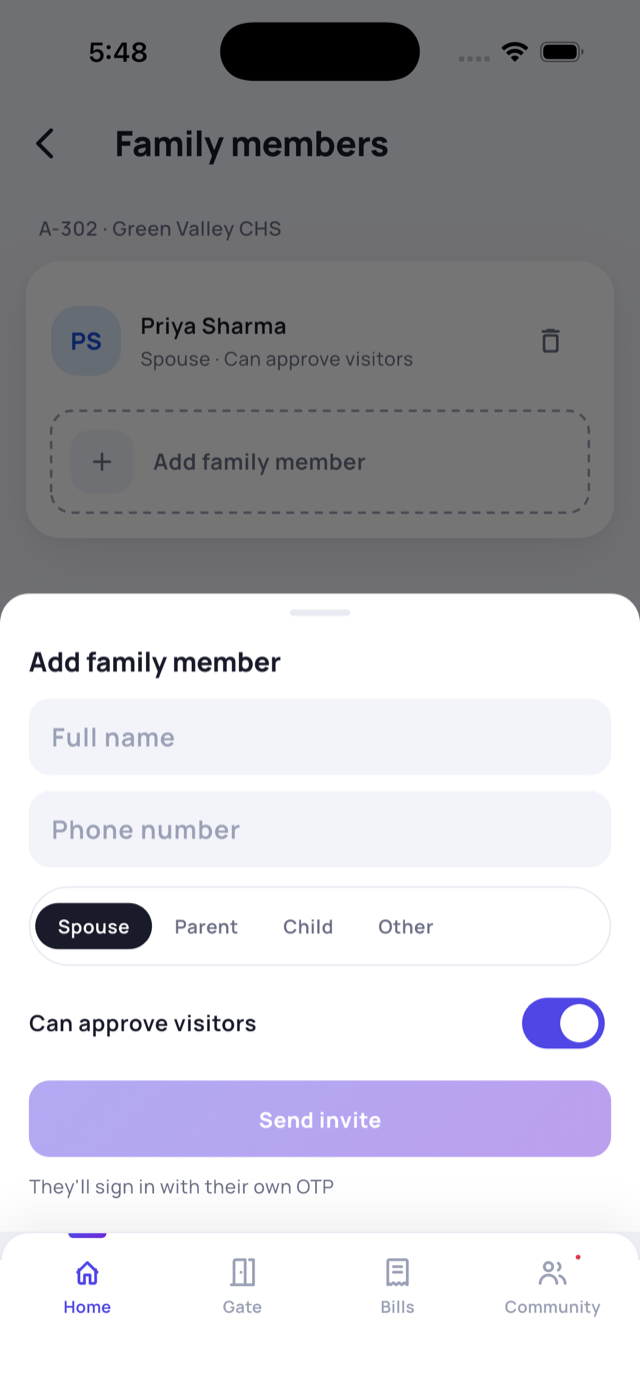
- Go to your Profile tab → Family Members (also under Home → See All).
- Tap Add family member and enter their name, phone number and relationship.
- Turn on Can approve visitors if you’d like them to handle gate approvals as well.
- Tap Send invite. They sign in with their own mobile number and password and join your flat.
19 Documents
Read society documents and keep your flat’s papers in one place.
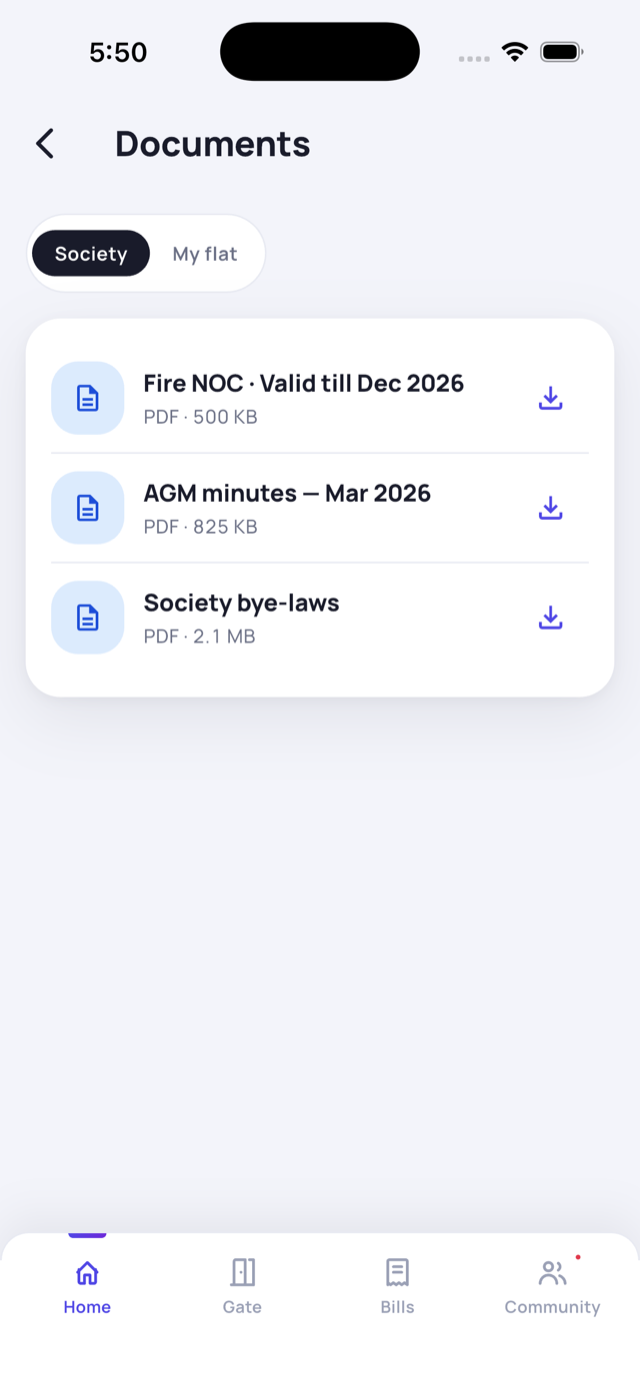
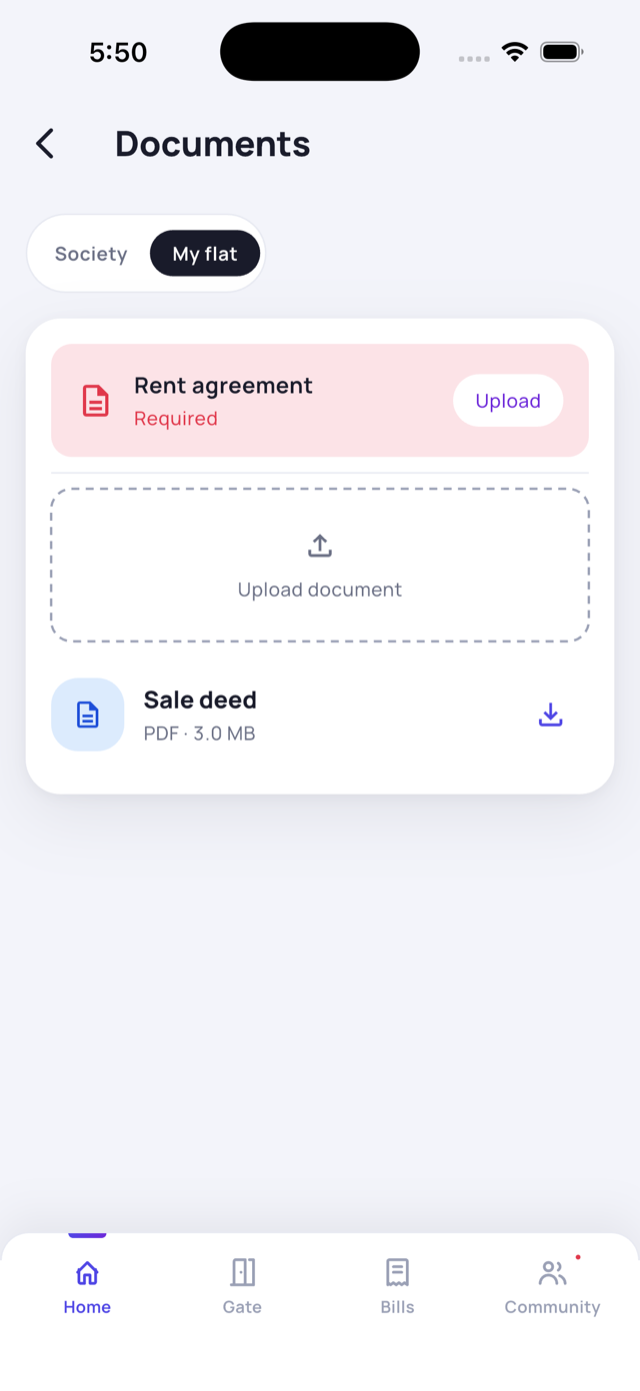
Open Home → See All (the More menu) → Documents. There are two tabs:
- Society - shared documents like bye-laws, AGM minutes and the fire NOC. Tap the download icon to open one.
- My flat - your flat’s own papers, like the sale deed. Tenants will see Rent agreement · Required - tap Upload to add it.
To add your own file, tap Upload document and choose a PDF or image.
20 Profile & settings
Update your details, see your account, manage notifications and sign out.
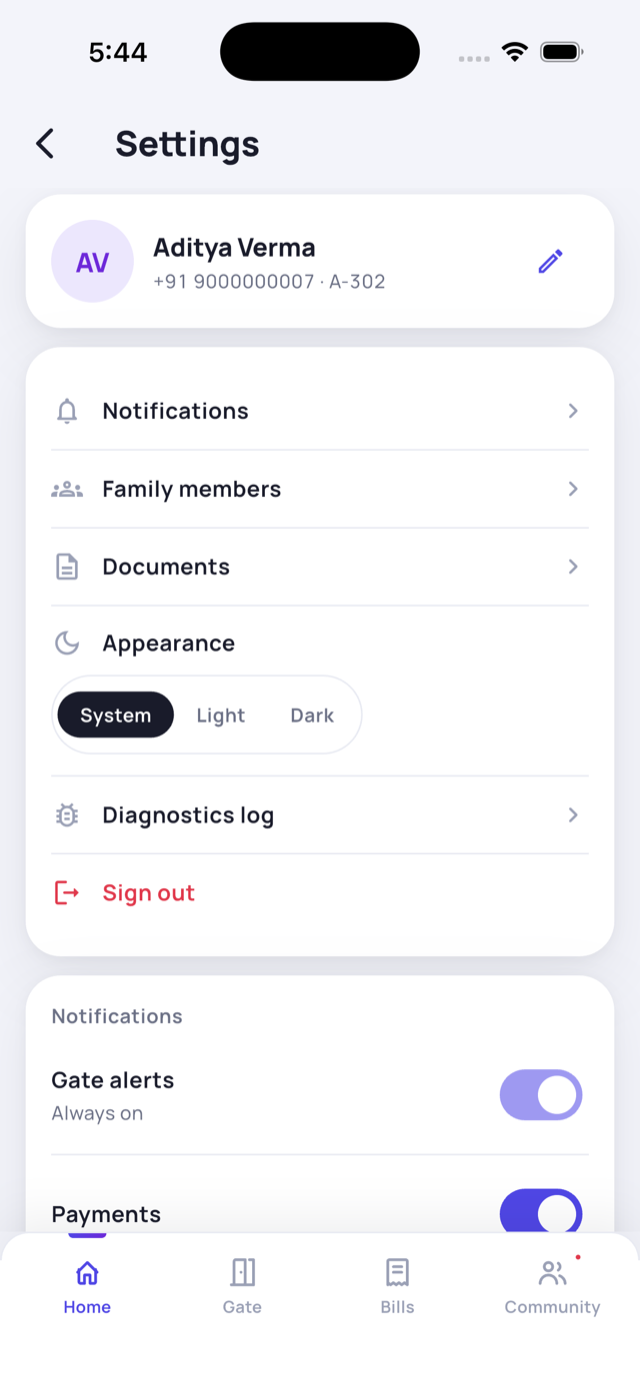
Open your Profile tab. From here you can:
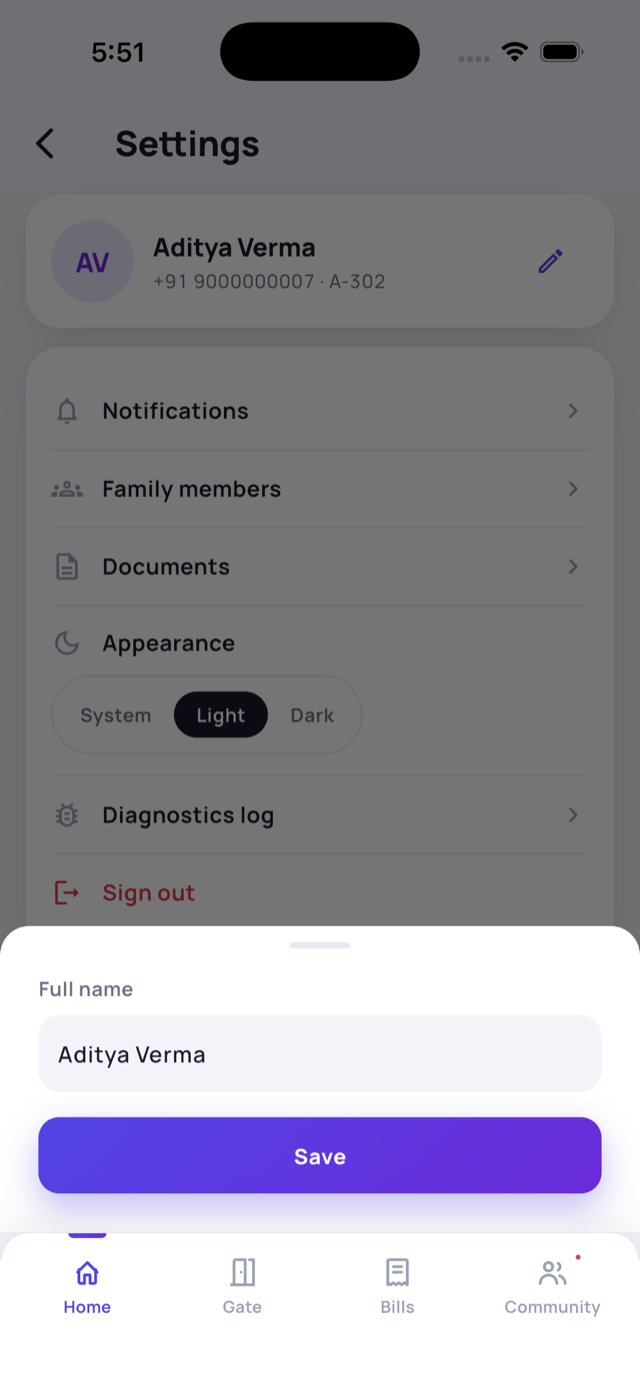
- Edit your profile - tap the pencil to change your name, or the camera on your photo to add one.
- Your account - My Flat, Family Members, Vehicles and Emergency Alerts, all in one place.
- Notifications - choose which alerts you get (Gate alerts stay always on for safety) and set your Quiet Hours.
- Sign out - or Delete Account if you’re leaving.
21 Notifications
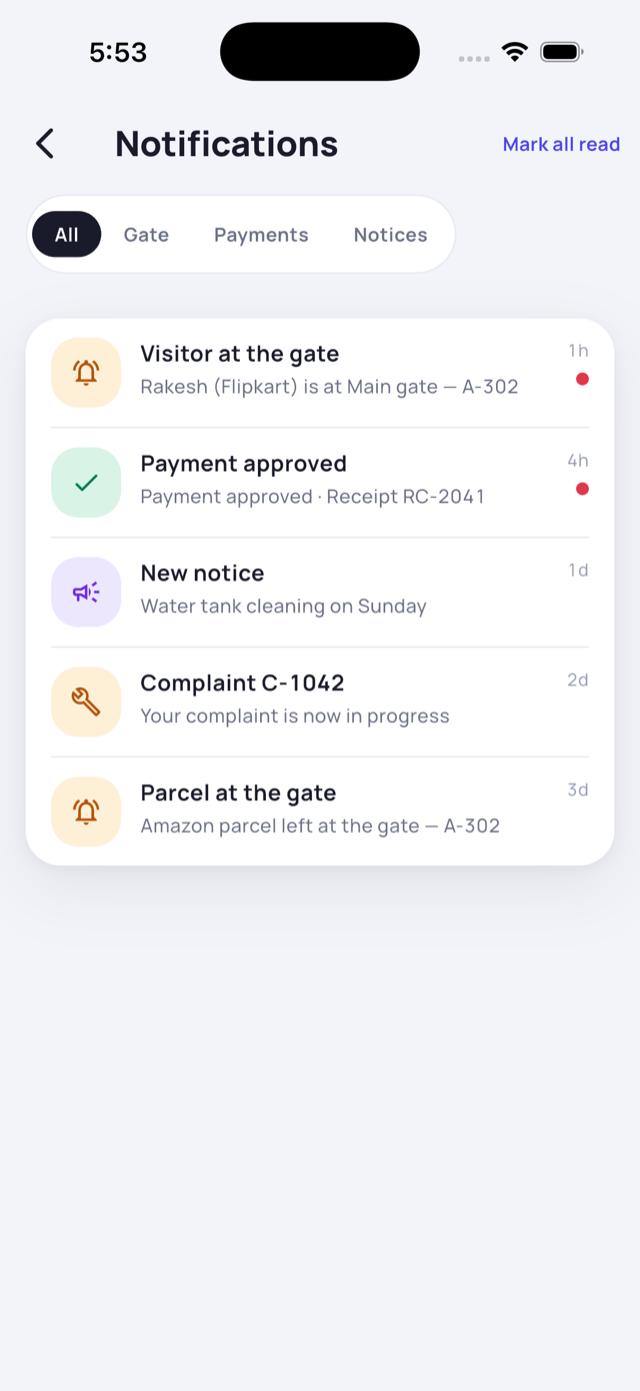
One place for everything that needs your attention - tap to jump straight to it.
Tap the bell on the Home screen (a red dot means unread). Your notifications are grouped into tabs - All, Gate, Payments and Notices.
- Tap any notification to jump straight to it - a visitor request, a payment update, a new notice or a complaint update.
- Tap Mark all read to clear the unread dots.
22 DailyPass
Your personal entry QR - show it at the gate to get into your own home.
Open DailyPass from Home (a quick-action tile) or Home → See All (the More menu). It shows your own home-entry QR - flash it at the gate and the guard scans you straight in. It never expires.
- Every resident gets their own DailyPass - owner, tenant and each family member.
- It’s just for your household - separate from guest passes (for visitors) and Helpers (your maid, cook or driver, who each get their own gate QR).
23 Services
Find trusted local professionals - plumbers, electricians and more - and get a job done.
Open the Services tab. Your committee lists vetted local professionals you can reach in a tap:
- Contact a professional - browse pros by trade and Call or message them directly.
- Raise a request - post a job and let a professional accept it. Track it under My requests.
- Rate a pro after the job, so the next neighbour knows who’s reliable.
24 FAQ & help
Quick answers to the most common questions.
I forgot my password
Tap Forgot password on the sign-in screen, enter your number, get the code, then set a new one.
I didn’t get my OTP
Check your signal, wait for the “Resend code” timer, then tap it. Make sure you typed the right number.
My request to join is still “waiting”
Your society admin needs to approve it. If it’s taking long, message a committee member - they approve requests from their admin panel.
I paid but my dues still show
Manual payments show Under review until your admin verifies the screenshot and reference. Once approved, your dues clear and you get a receipt.
Can my spouse approve visitors?
Yes - add them under Family members with “Can approve visitors” turned on.
I have two flats
Tap the flat pill at the top of Home to switch between them. Each flat keeps its own dues, gate activity and bookings.
Still stuck?
Contact your society committee or admin - they manage members, approvals, bills and notices for your society.